Historical Records
You can view the edit history of a symbol, switch to view any historical version, and select two history nodes for comparison.
Entrance
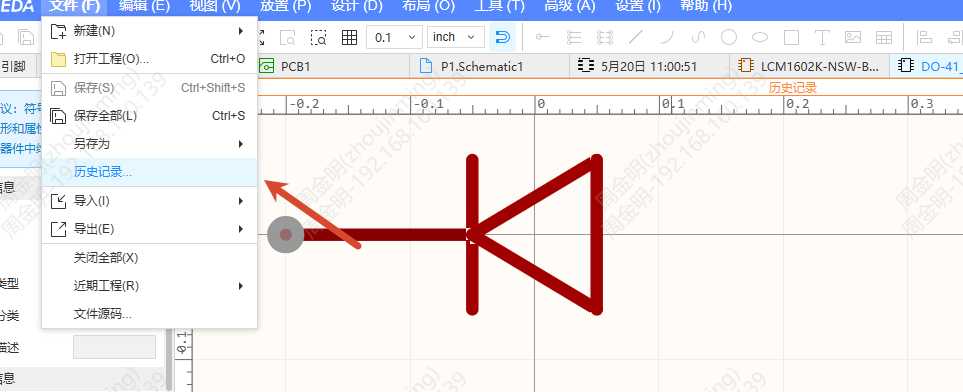
- Symbol editor top menu - File - Historical Records
- The "cloud" icon in the top toolbar
Note: Currently, only pure symbol pages and footprint pages support opening historical records.
Procedure
View historical records
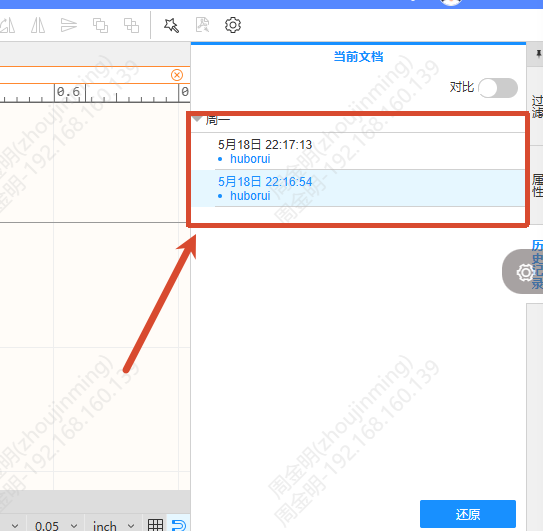
- In the symbol editor, click Historical Records to open the historical records tab on the right.
- The list is grouped by time (Today, Yesterday, Last Week, etc.), showing 20 records per page. Click to expand and load more records.
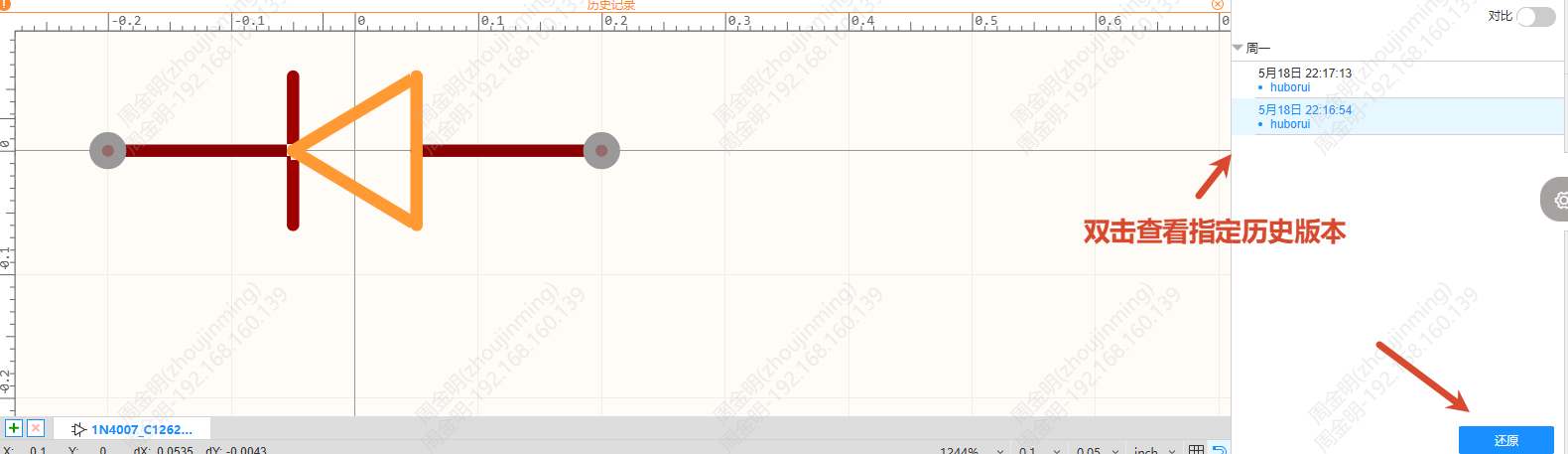
- Single-click to select a history node, and double-click to open that historical version for viewing.
- Click Restore to restore to the selected historical version.
Under the project library, you can switch to view the historical records of other library documents in the same project; under the team library, only the current document is displayed.
History comparison
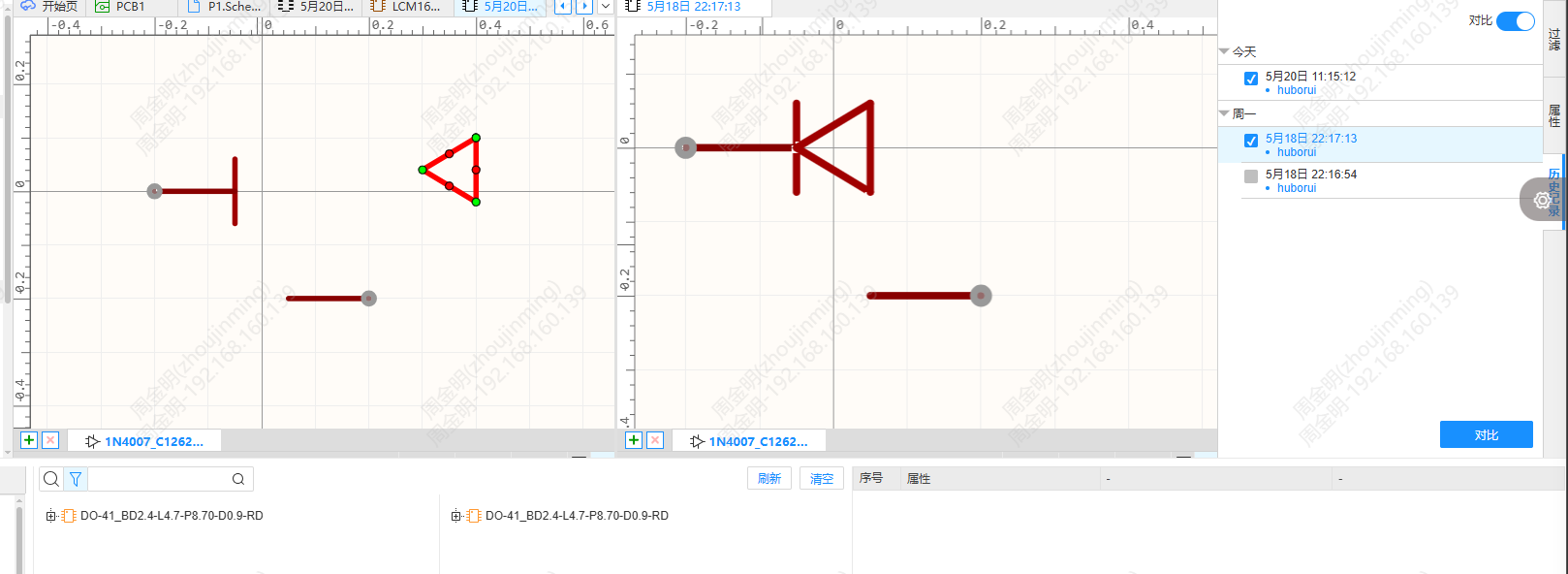
- In the historical records list, check two history nodes (once two are selected, the others are grayed out and cannot be selected).
- Click the Compare button to enter the comparison interface.
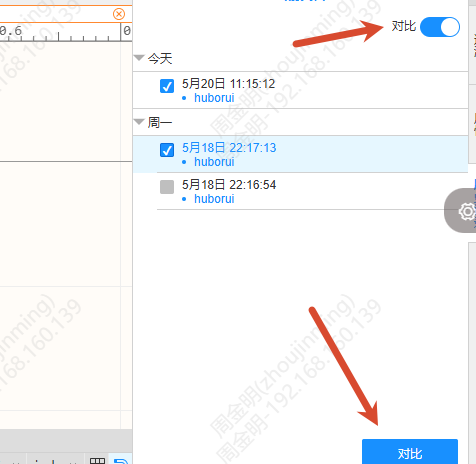
- The left side shows the object comparison (pins, polylines, arcs and other primitives), and the right side shows the attribute comparison (matched by attribute name; the difference types are content change, missing, and extra).
- Close the document on either side and the other side is displayed in full screen; you can then select nodes again for comparison.