Text Devices and Alternative Devices
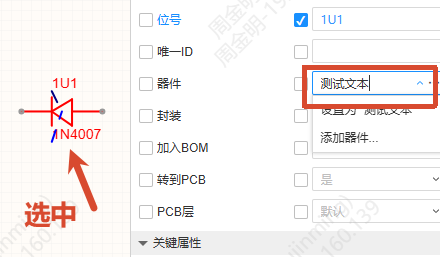
The device field in the schematic's right-side properties supports entering text directly as the device value, with no need to go through the device binding flow. It also supports clearing, switching the alternative device and modifying the device.
Entry
- Schematic - select a component - right property panel - Device field
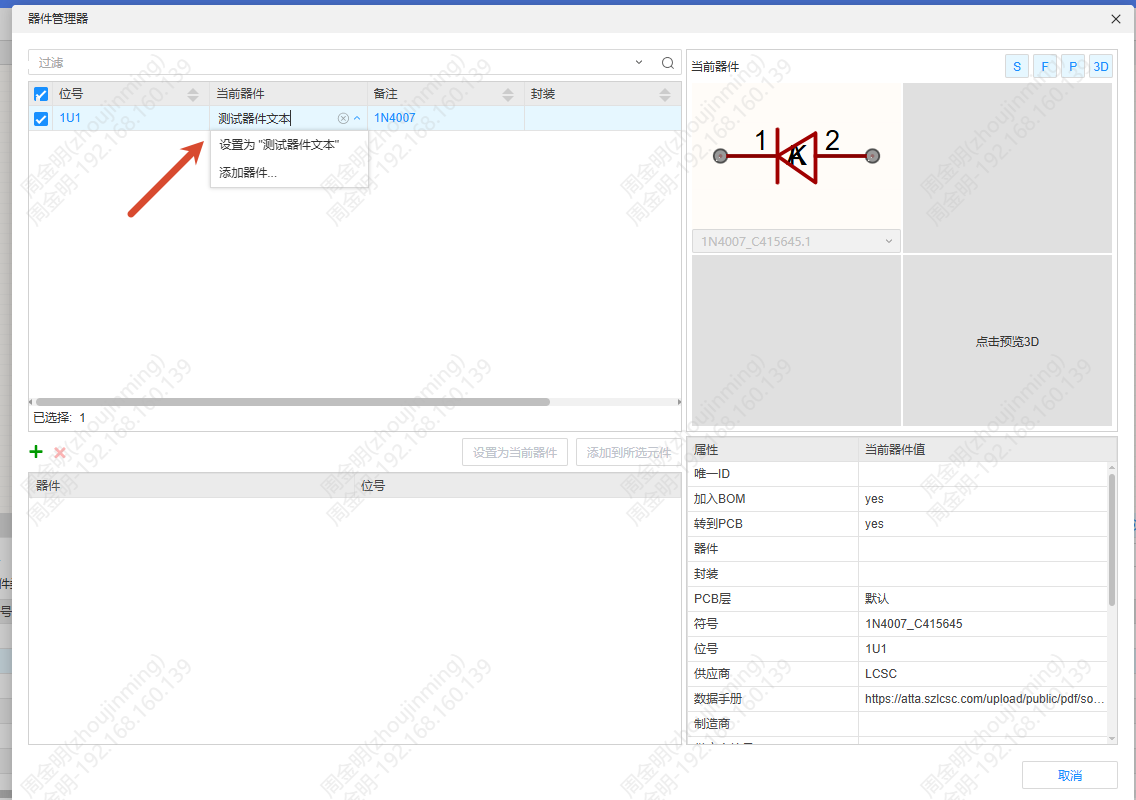
- Schematic - Tool - Device Manager
Steps
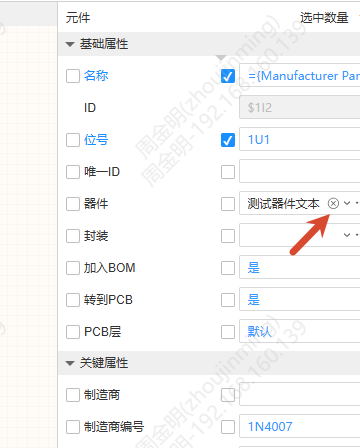
Clearing the Device Value
Hover the mouse inside the device input box and a clear button appears; click it to delete the value of the device field. Undo/Redo is supported.
Entering Text as the Device Value
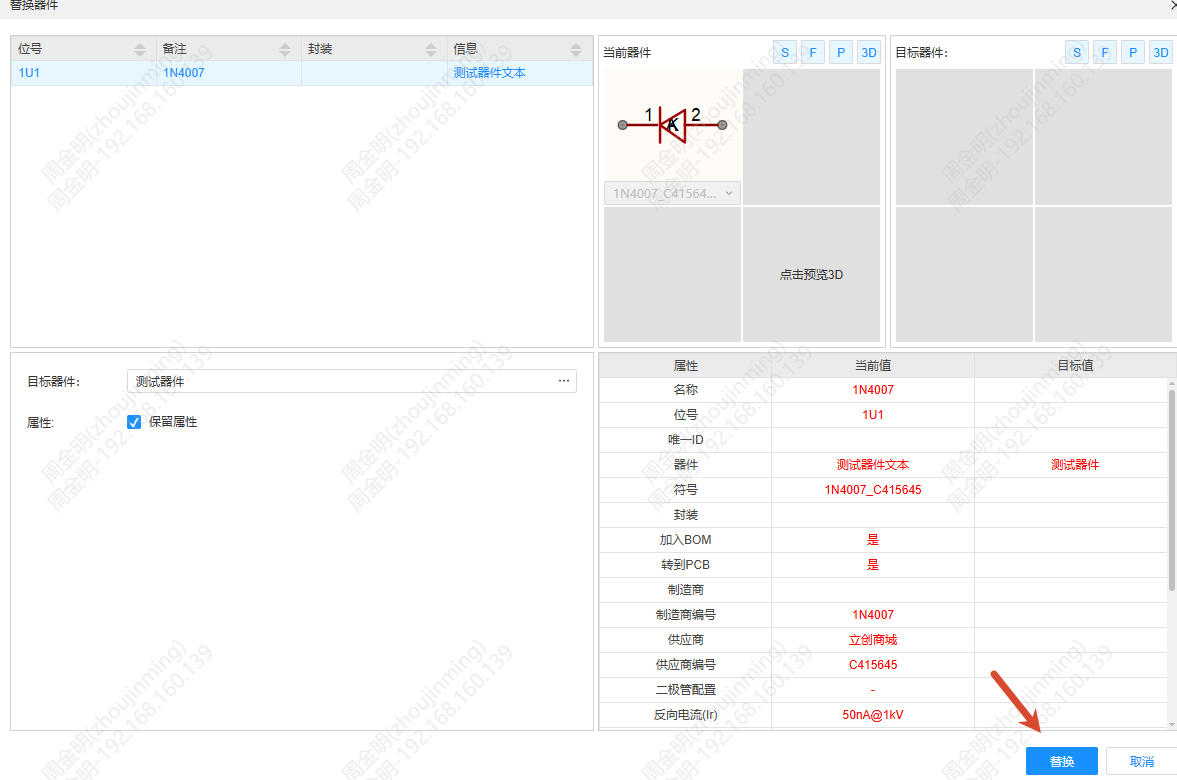
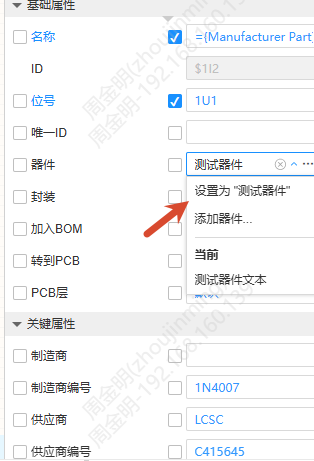
Enter text directly in the device field. After you type, the "Set as '...'" option appears in the drop-down items; select it to open the Modify Device pop-up window, where you can set the text as the current device.
Switching the Alternative Device
When the device property input box gets focus, the drop-down items expand, showing the bound alternative devices and the "Add Device..." option.
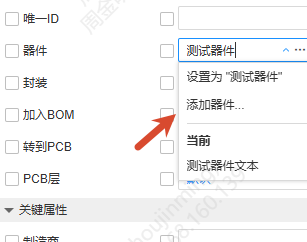
- Select Add Device... to open the device selection pop-up window, then search for and associate a device. When the search box is empty, the "Use Text Device" button cannot be selected; when no row is selected, the "Associate Selected Device" button cannot be selected
- Select an alternative device to open the Modify Device pop-up window; confirm it to complete the switch