

Right Panel - Display
A Display tab is added to the right panel, allowing detailed control of show/hide by layer and primitive type, and it can be saved as a custom view config.
It is a second entry to the same set of configurations as the Top Menu - View - Display Color dialog; changes to either are synchronized.
Entry
Right Panel - Display tab (above Attribute)
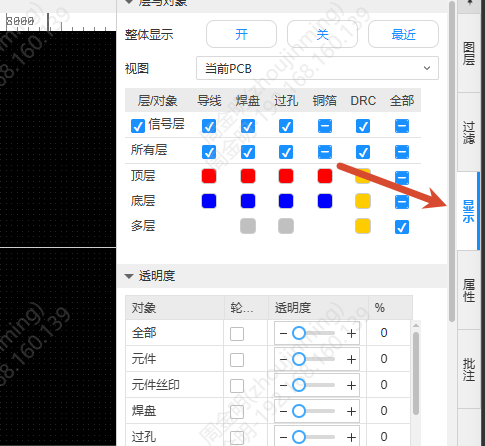
Steps
- In the Display panel, view the grid of layers and primitive types; each cell shows the color of the corresponding layer and primitive
- Click a cell to toggle show/hide repeatedly (when hidden, the canvas background color is shown; when shown, the corresponding color is shown)
- Right-click the color value box to switch the color quickly
Quick Controls
- Global Visibility: On / Off / Last, controls the show/hide of all layers and primitives
- Signal: the checkbox controls all signal layers
- Plane Zone: the checkbox controls all plane zones (not shown when there is no plane zone)
- All Layers: batch-controls the corresponding primitive types of the layers shown below
- Specific Layer: copper layers are shown in stack order, with Multi fixed at the bottom
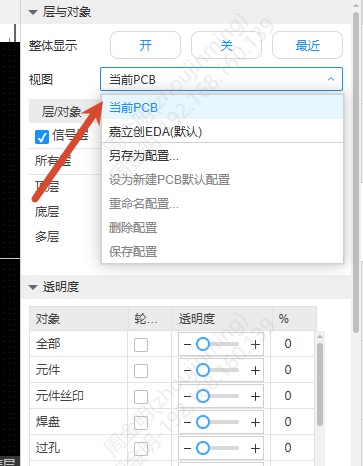
View Config
The view drop-down in the lower left corner supports switching, Save As, Set as Default, Rename, Delete and Save Config. After the panel content is modified, "Custom Config" is shown.
Panel Linkage
- All primitives of a layer unchecked in the Display panel → the corresponding layer in the Layer panel is hidden as well
- All layers of a primitive type unchecked in the Display panel → the corresponding primitive in the Filter panel is hidden as well
- The reverse operations are linked in the same way