

Dragging a Library to the Canvas
You can drag a component straight from the preview area of the Common Library or the bottom library onto the canvas, with no need for repeated clicks, which makes placing faster.
This applies to the schematic, PCB, panel and simulation editors.
Entry
- Common Library: the preview image area of the Common Library on the left
- Bottom library: the preview image area of the device library, symbol library, footprint library and panel library at the bottom (including their pop-up windows)
Steps
- Press and hold the left mouse button inside the preview image area of the Common Library or the bottom library and drag towards the canvas (the bottom library does not need to be collapsed while dragging)
- Once the mouse enters the canvas area, the library content snaps to the cursor
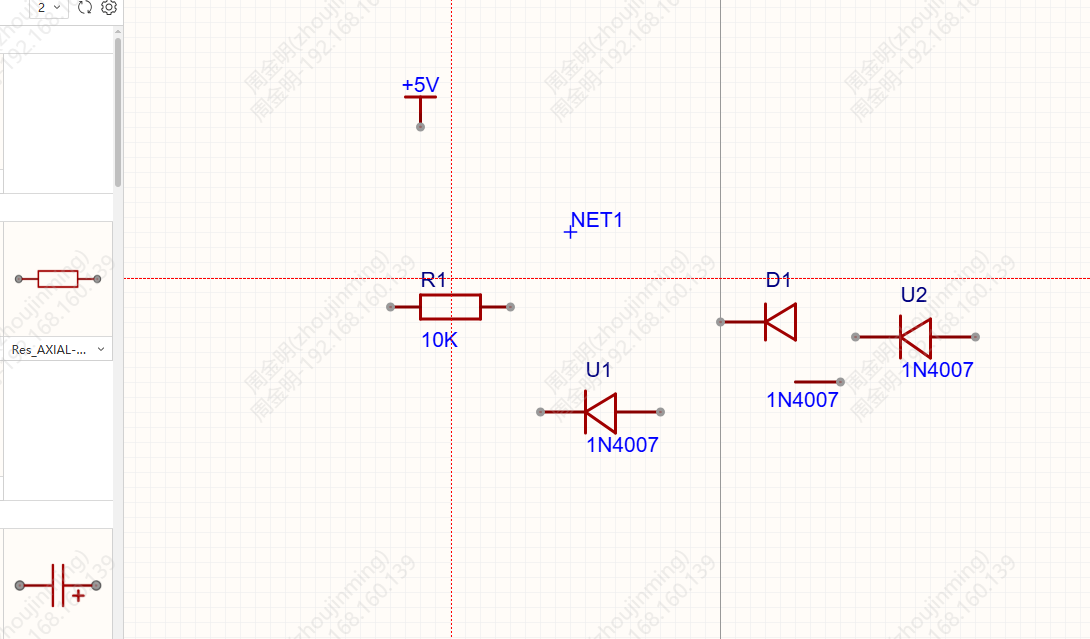
- Release the left mouse button on the canvas to finish placing
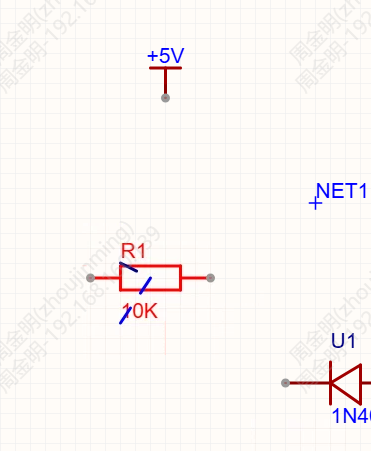
- During the drag, click the right mouse button or press Esc to exit placing; releasing the mouse outside the canvas also exits placing