Multiple Footprints and Text Footprints
The footprint field in the schematic's right-side properties supports binding multiple footprints and entering text directly as the footprint value. The 3D Model and Symbol fields have likewise been changed to input drop-down lists.
Entry
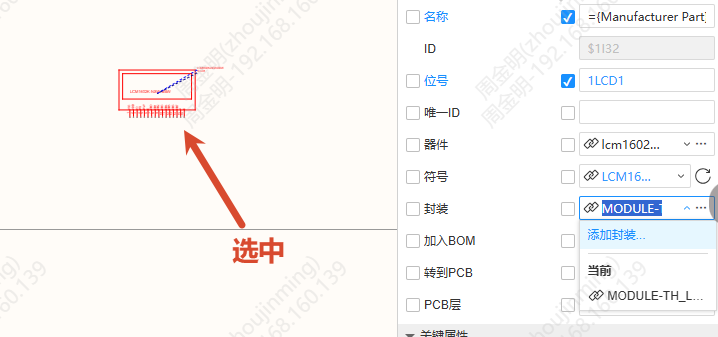
- Schematic - select a component - right property panel - Footprint field
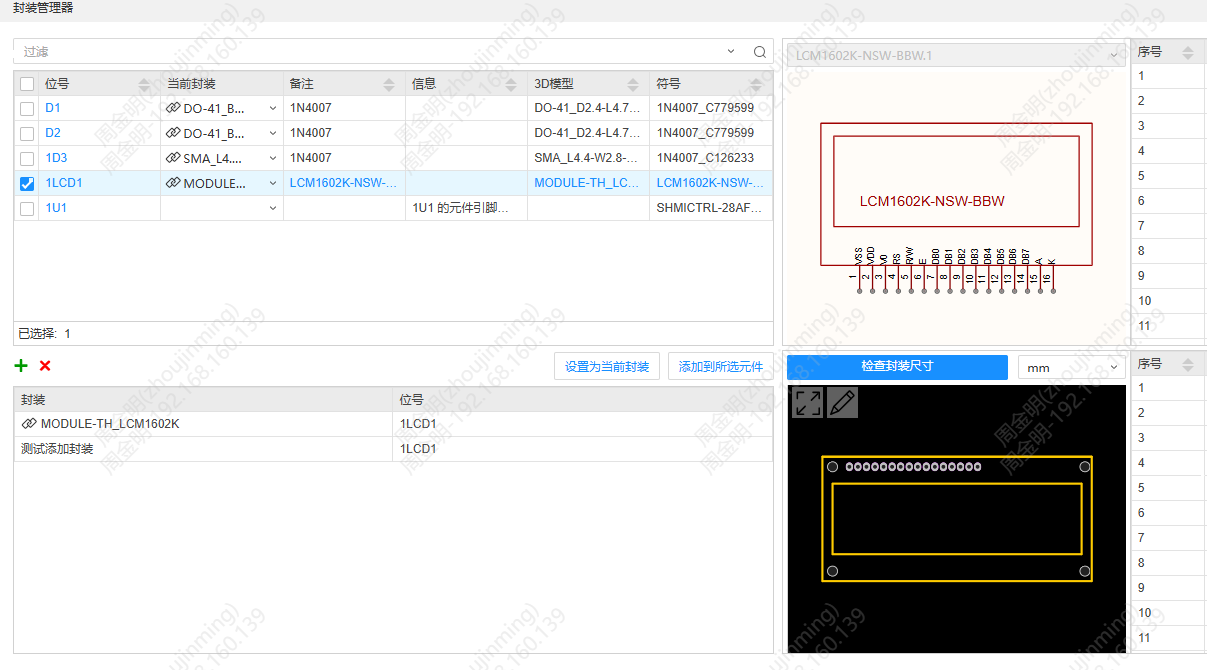
- Schematic - Footprint Manager
Steps
Switching Footprints
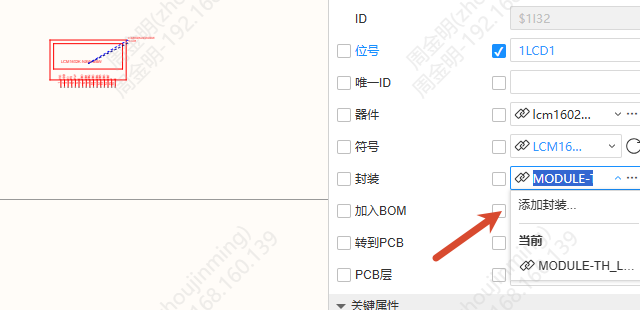
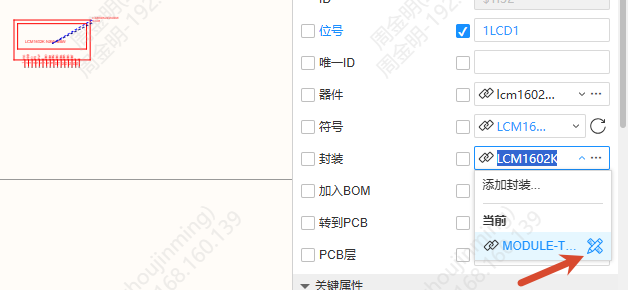
The footprint field has been changed to an input drop-down list. When it gets focus the drop-down items expand, showing the bound footprints (grouped by source) and the "Add Footprint..." option. Footprints of the UUID type show a link icon, while text-type footprints do not.
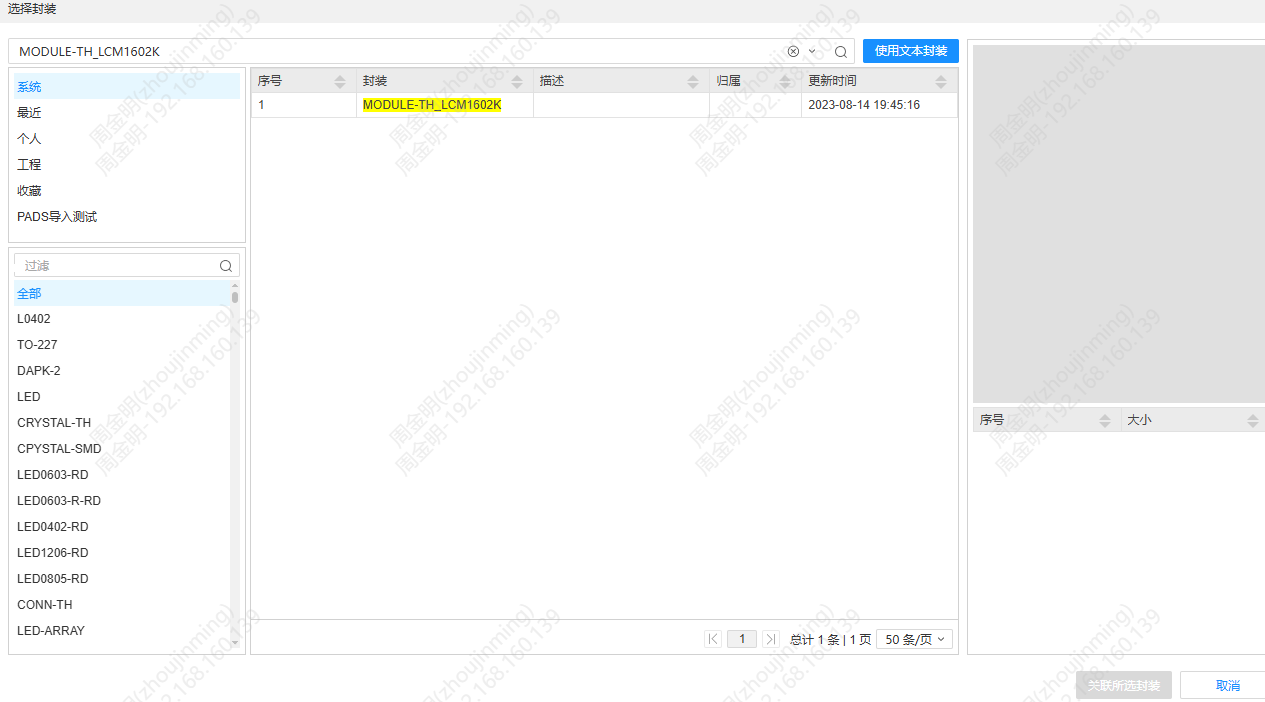
Select Add Footprint... to open the footprint selection pop-up window, then search for and bind a footprint.
Adding and Deleting Footprints
Move the mouse over a footprint value in the drop-down items and a delete button appears; click it to delete the footprint (Undo/Redo is supported). Footprints that come from the device do not show a delete button.
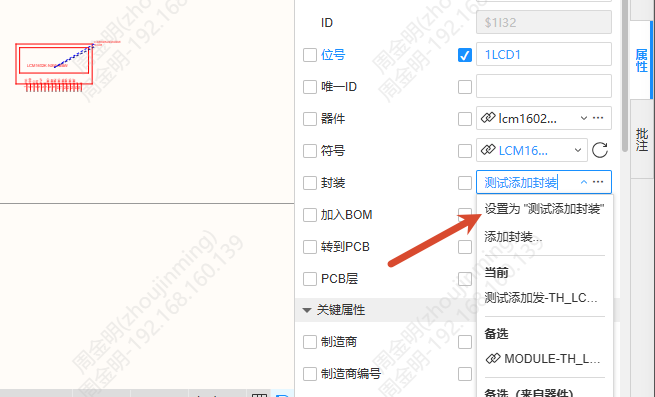
After you enter text, the "Set as '...'" option appears in the drop-down items; select it to save the current footprint as a text value.
Footprint Manager
In the Footprint Manager, the footprint column in the upper-left area has become the current footprint column, with the same drop-down behavior as the right-side properties. A blue designator can be clicked to locate the component. The lower-left area aggregates identical footprints and supports adding, deleting, setting as the current footprint, and adding to the selected components. The current footprint column and the footprint column below it support copying and pasting footprint data.