

Export BOM
Export BOM
EasyEDA Pro supports separate PCB export BOM (Bill of Materials) so that you can purchase the required parts.
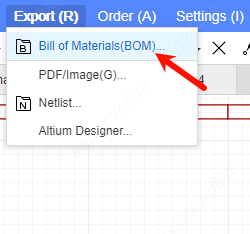
- Top Menu - File - Export - Bill of Materials BOM
- Top Menu - Manufacturing - Bill of Materials BOM
Scope: Select the PCB of the exported project or the BOM of the schematic
Filename: The filename of the exported BOM
File Type: Only XLSX and CSV formats are supported
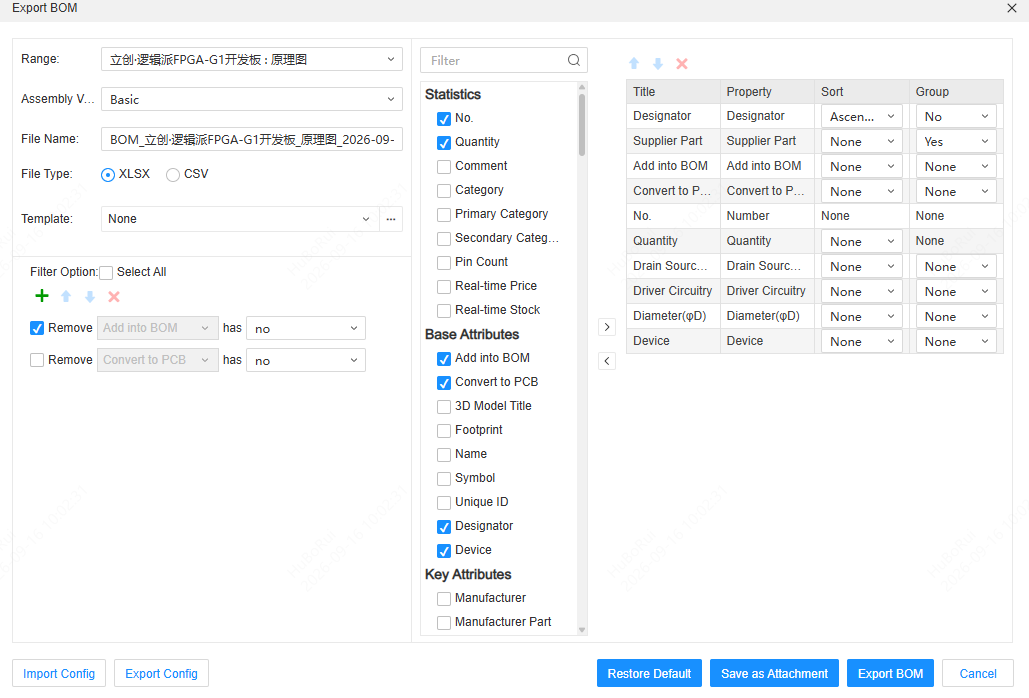
Filter options: Support adding filter rules to filter unnecessary components. The filter configuration will be saved in personal preferences and synchronized in the cloud.
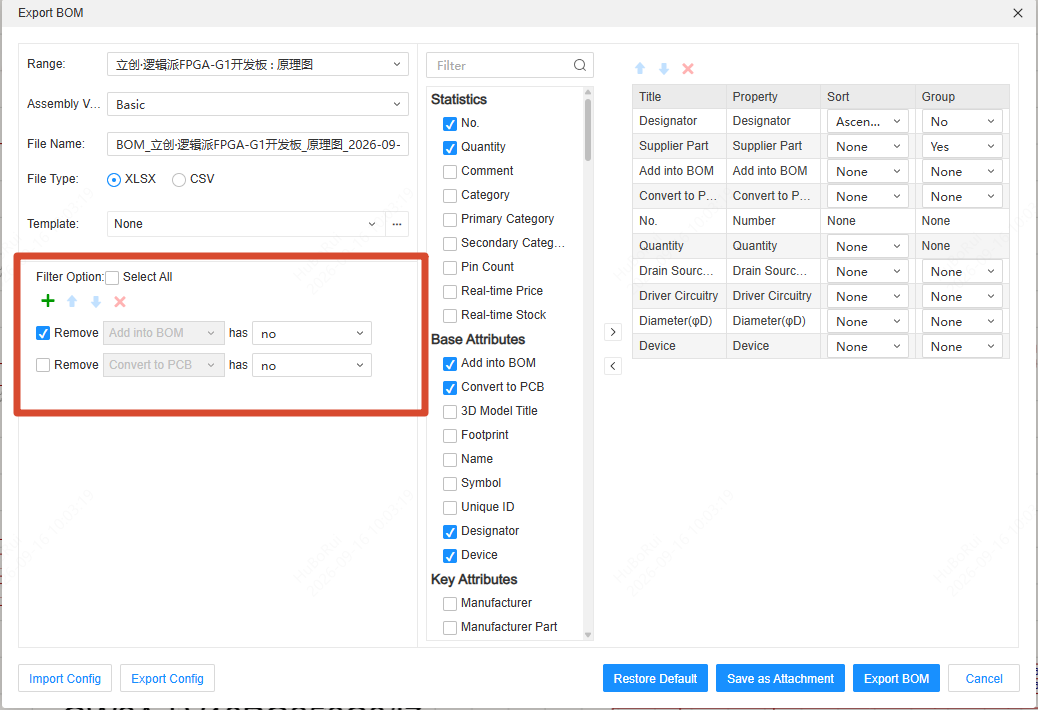
All attributes: In the middle is the type of BOM or the properties of the device.
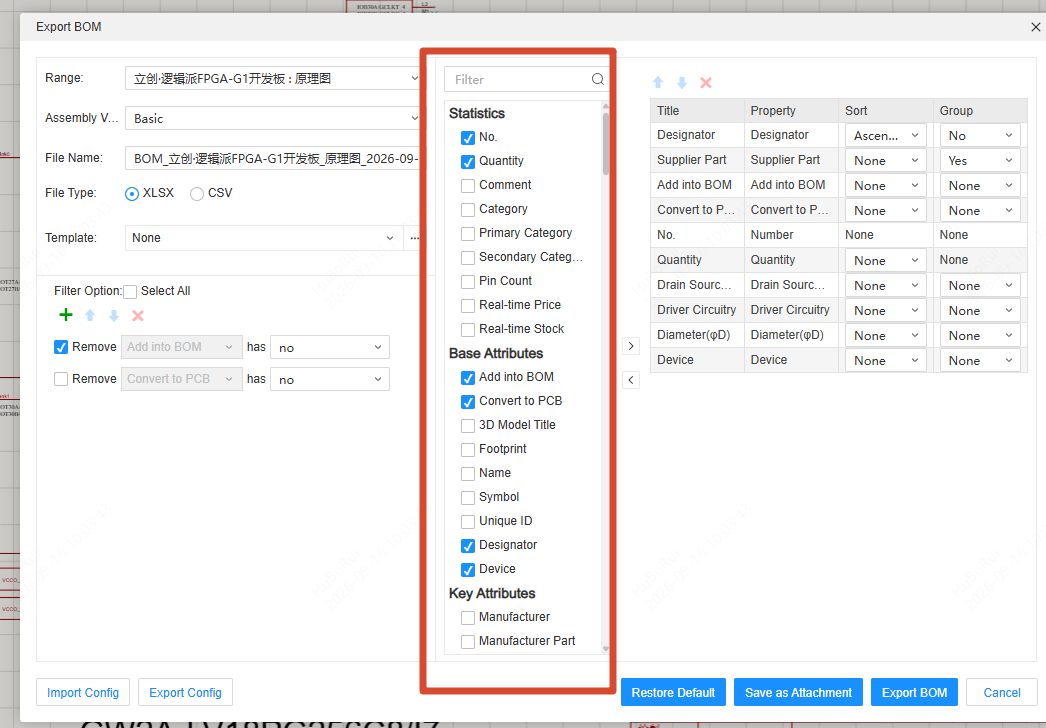
BOM Settings
BOM header settings: On the right is the section for selecting the content to be exported in the BOM.
Select the content to be exported and check it to add it into the BOM.
The removal operation is the same — just uncheck it to remove the selected attribute from the BOM.
To reorder the types, double-click the content to be changed on the right, or select the type and click the up/down arrows at the top to change the order of the BOM columns.
- Title: The title of the exported BOM; double-click to modify the BOM header name.
- Attribute: the attribute name of the exported device;
- Sort: the arrangement order of the exported BOM attributes; reflected in the sorting within cells in the BOM.
Exported BOM:
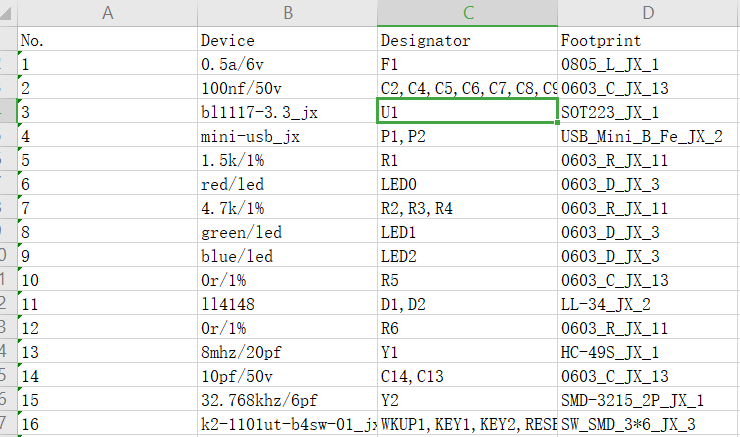
When the file type for exporting the BOM is selected as XLSX, you can use the "EasyEDA Pro BOM Template" for exporting.
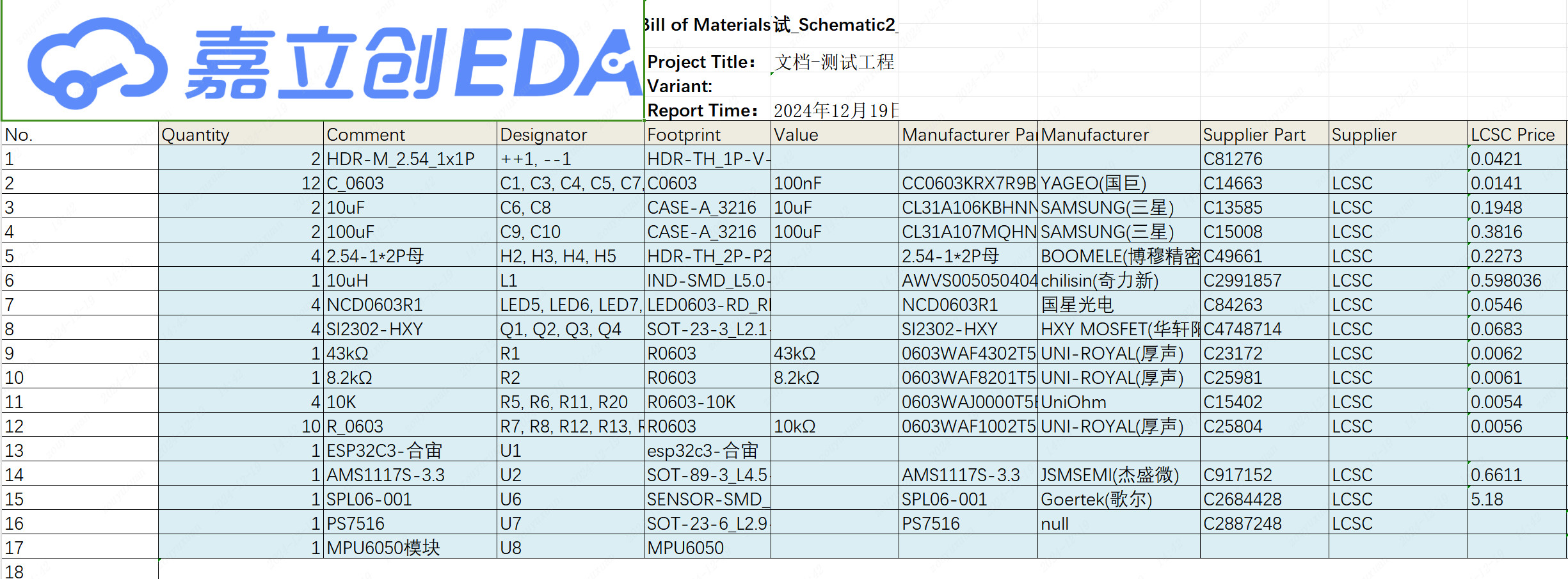
The BOM table generated by using the "EasyEDA Pro BOM Template" is as follows:
Parts order
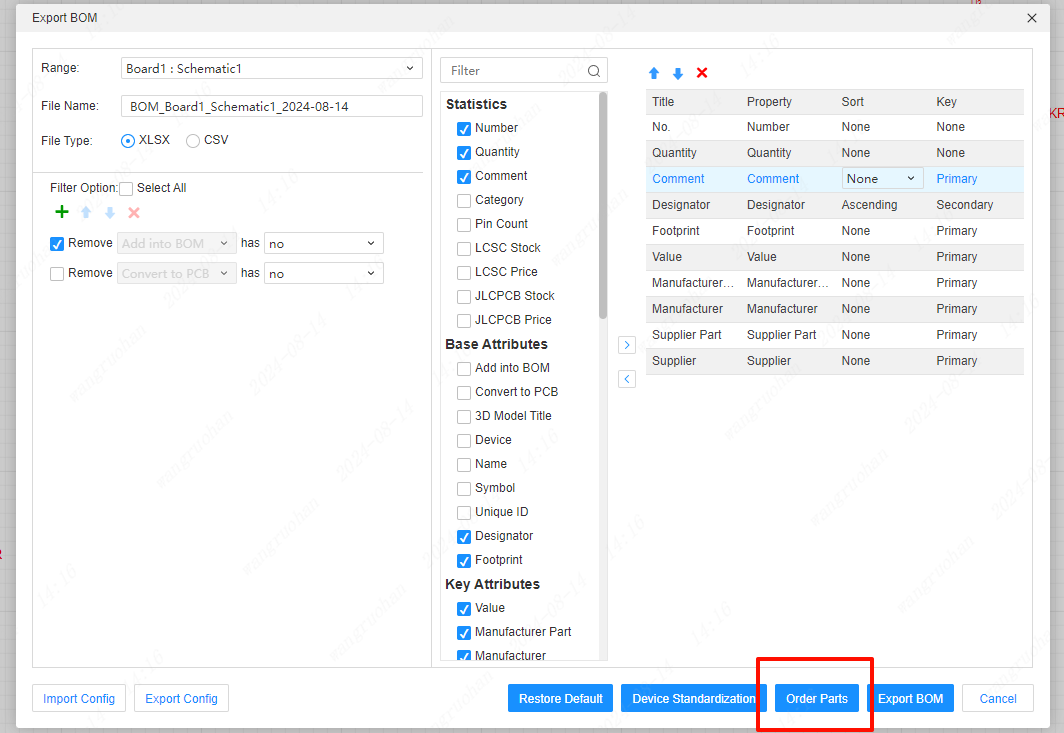
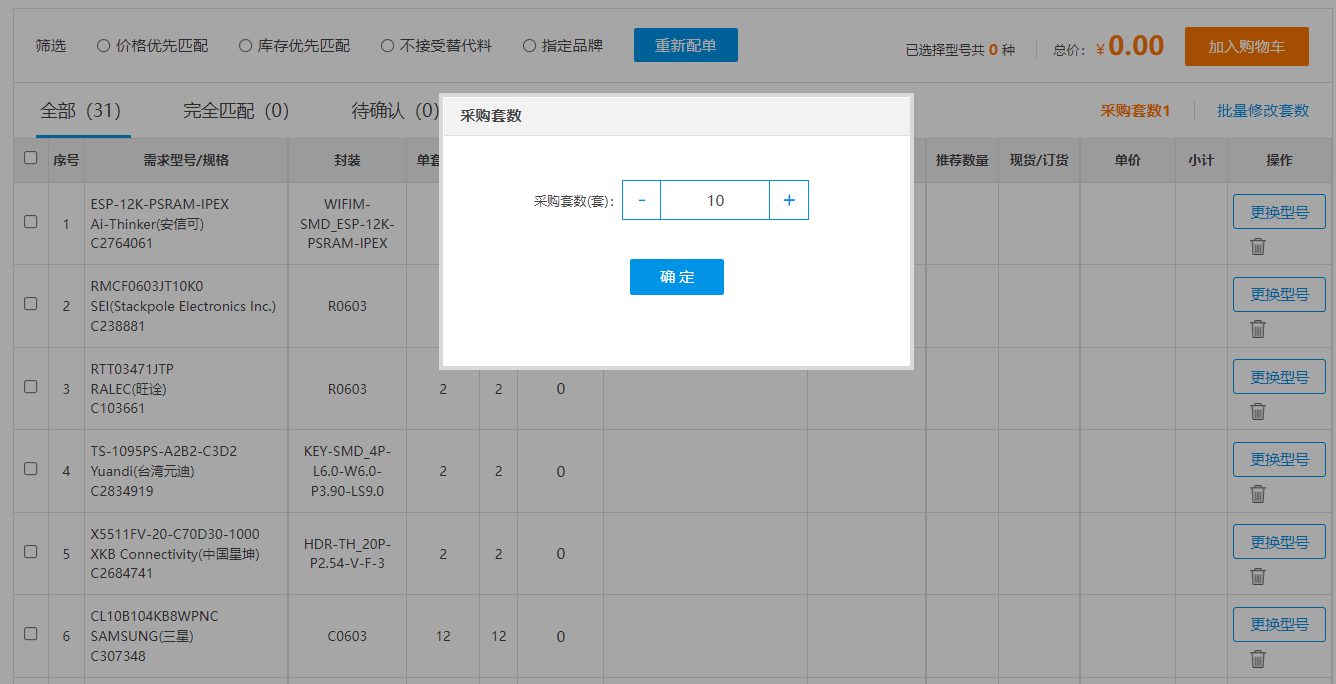
EasyEDA Pro supports BOM ordering. On the BOM export interface, select components to place an order, and the system will generate BOM data. Click OK to jump to the BOM matching interface of LCSC.
LCSC part store: https://lcsc.com