

English
Pad Custom Attribute
Add custom attributes to footprints and pads in the Footprint Editor and the PCB Editor, to record specific information such as production requirements and test parameters.
Entry
- Attribute: Check "Pad" in the object range
- Footprint Editor: Left property panel, or the property panel after selecting a pad - More Attributes
- PCB Editor: The property panel after selecting a pad - More Attributes
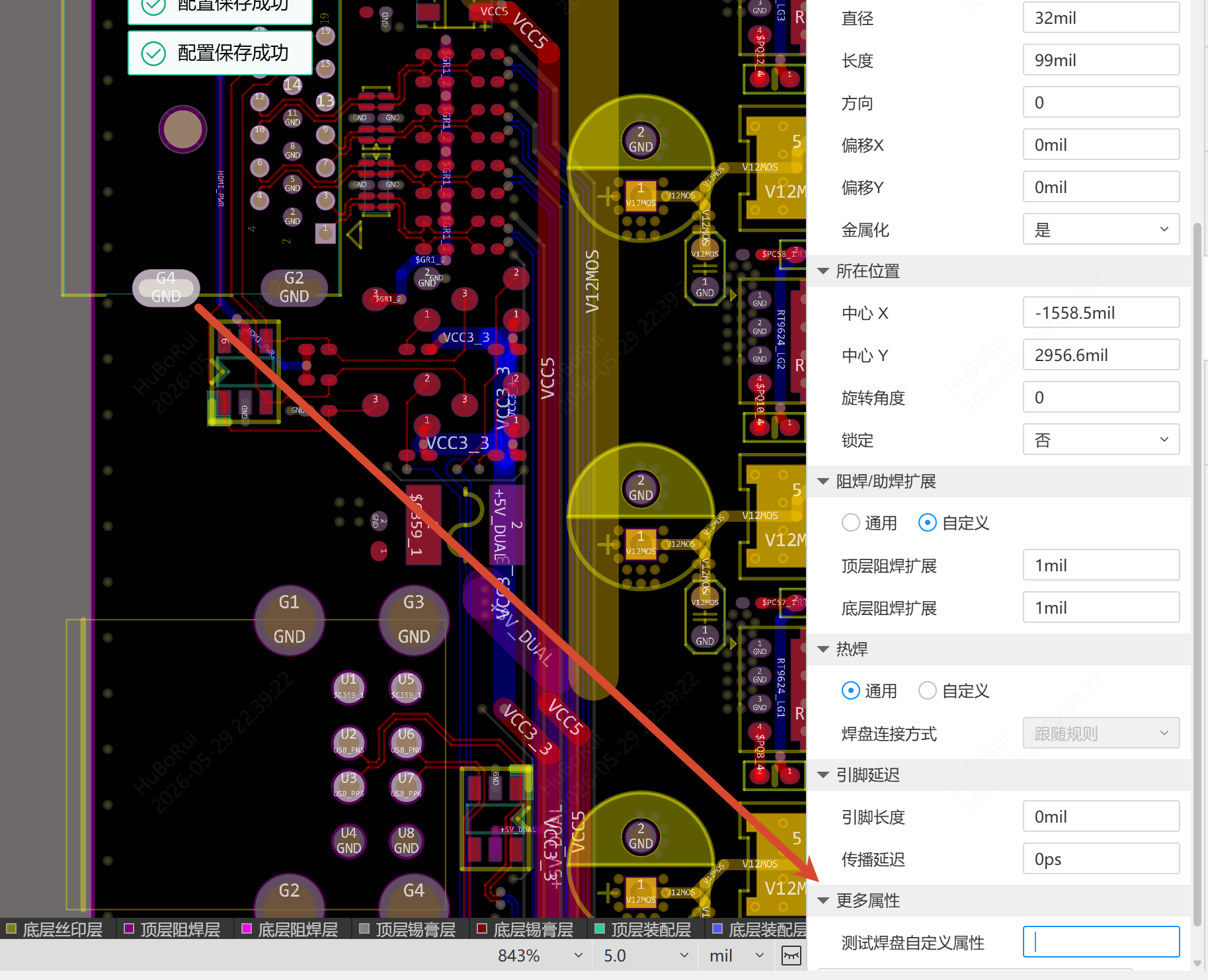
Steps
Add a Custom Attribute
- In Attribute, confirm that "Pad" is checked in the object range
- In the Footprint Editor, select a footprint or a pad, and select the attribute to be added in the drop-down box of the property panel
- Set the attribute value
After selecting a pad inside a footprint, the More Attributes category appears at the bottom of the property panel, where pad-level custom attributes can be added.
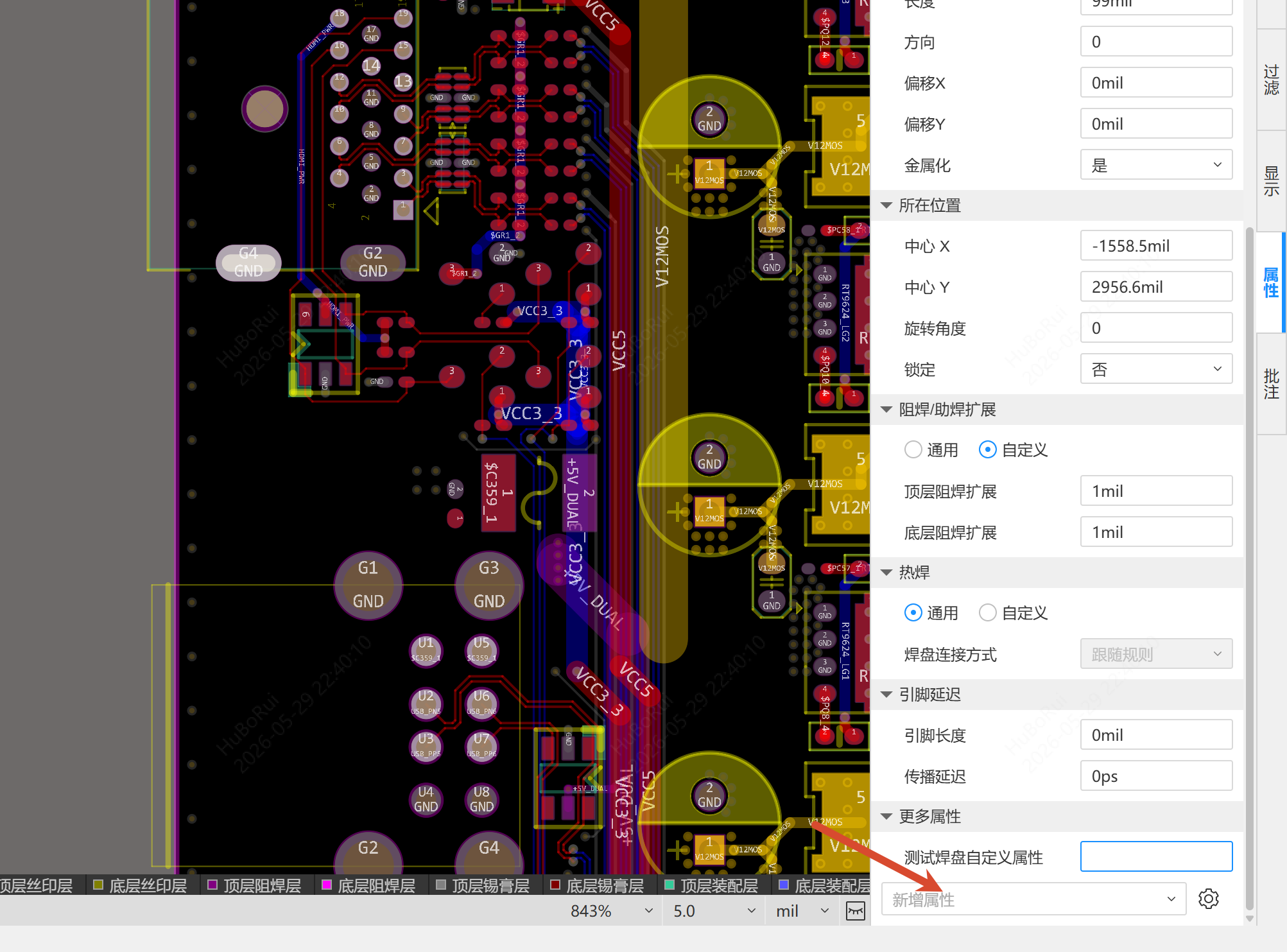
Delete an Attribute
Right-click the custom attribute and select Delete Attribute. If the attribute comes from the footprint level, the value of the next level is displayed according to the priority after deletion; if there is no lower level, the row disappears.
Attribute Priority
In the PCB Editor, the display priority of component attributes is: Component > Device > Footprint. The priority of pad attributes is: PCB > Footprint. An empty value can be stored to override the attribute of a lower level.