Module Signal Indicator Diagram
Place rectangle, circle and ellipse primitives in the schematic to add centered text and bind an associated page, then jump to the target page quickly with a shortcut key or the context menu.
Entry
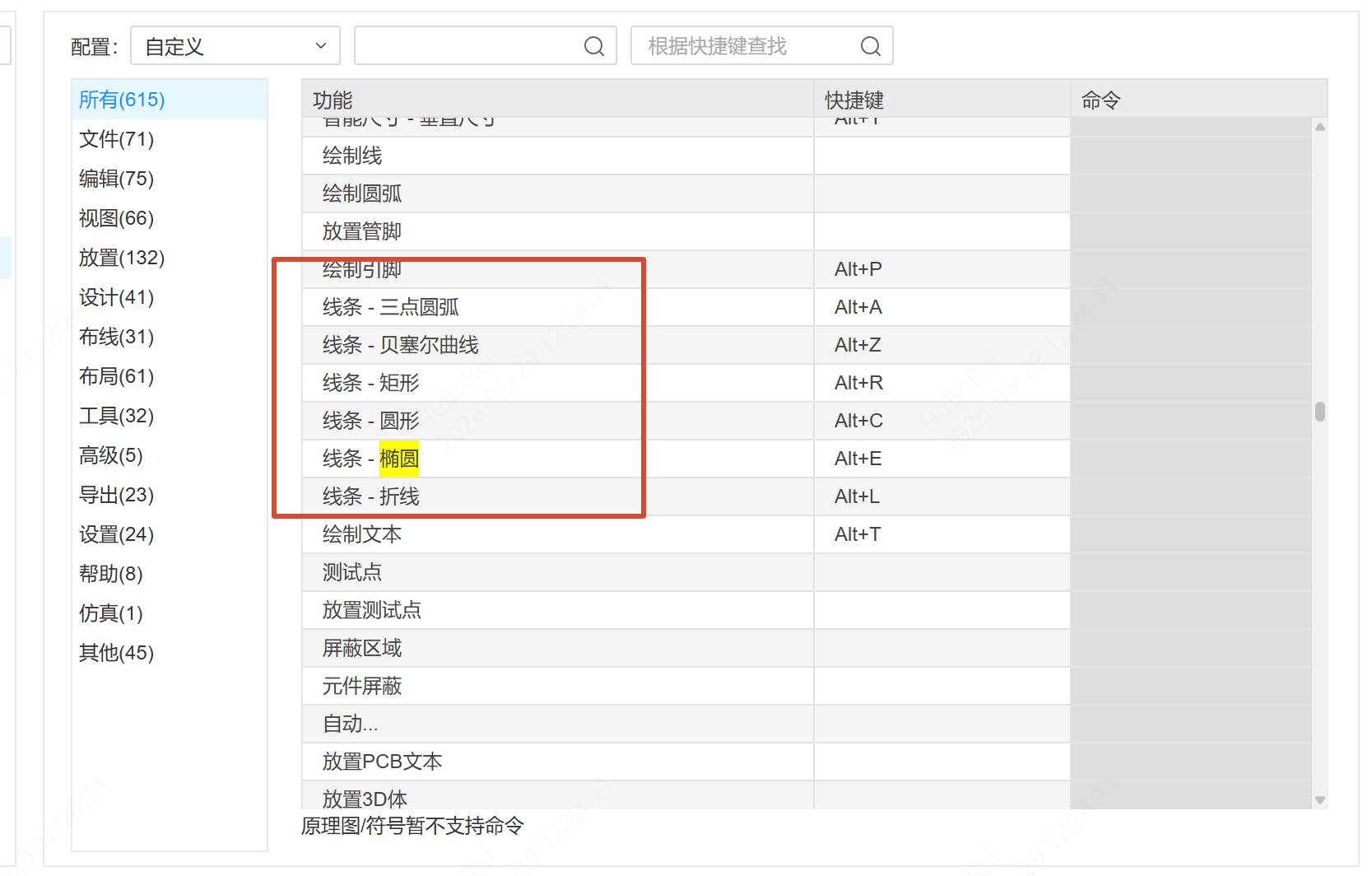
Top icon bar or shortcut keys: Rectangle Alt+R, Circle Alt+C, Ellipse Alt+E.
Steps
Placing Primitives
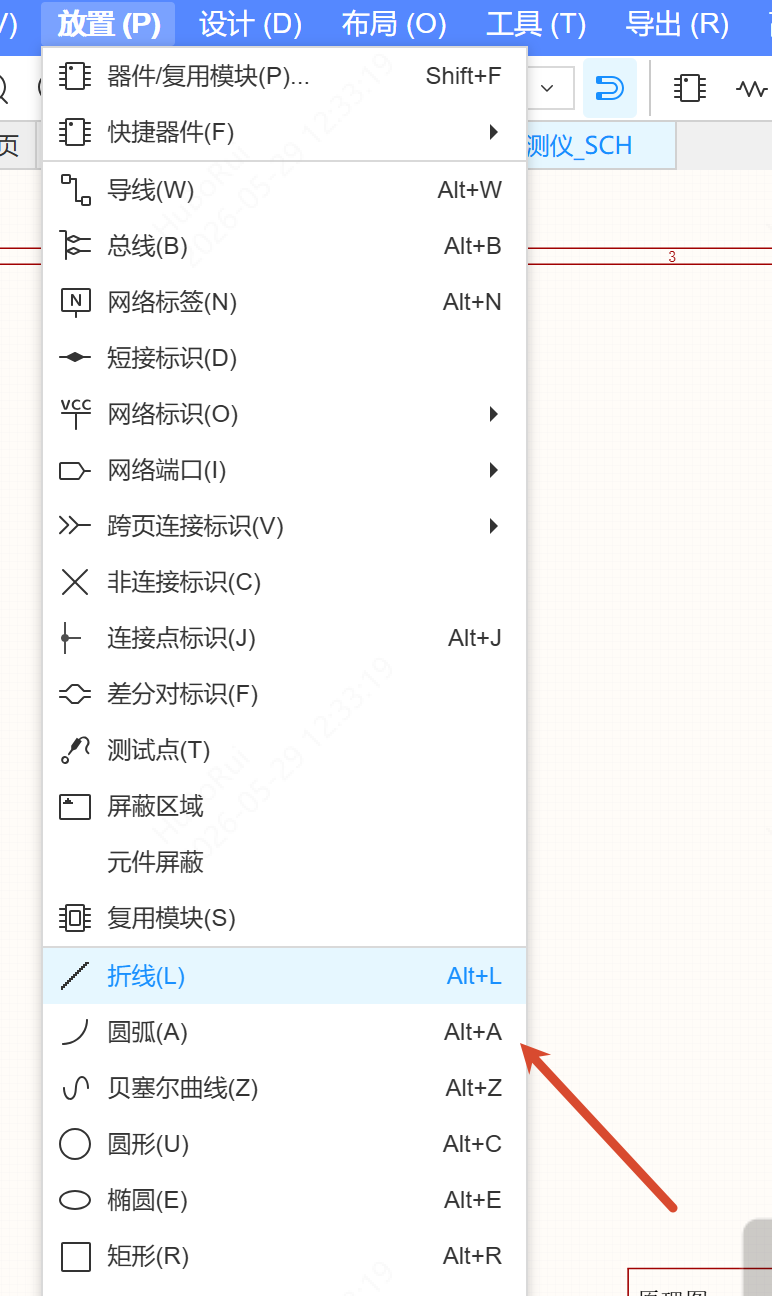
- Place them from the top menu or with a shortcut key
- Click on the canvas to place, drag to resize, and click again to finish
Editing Text
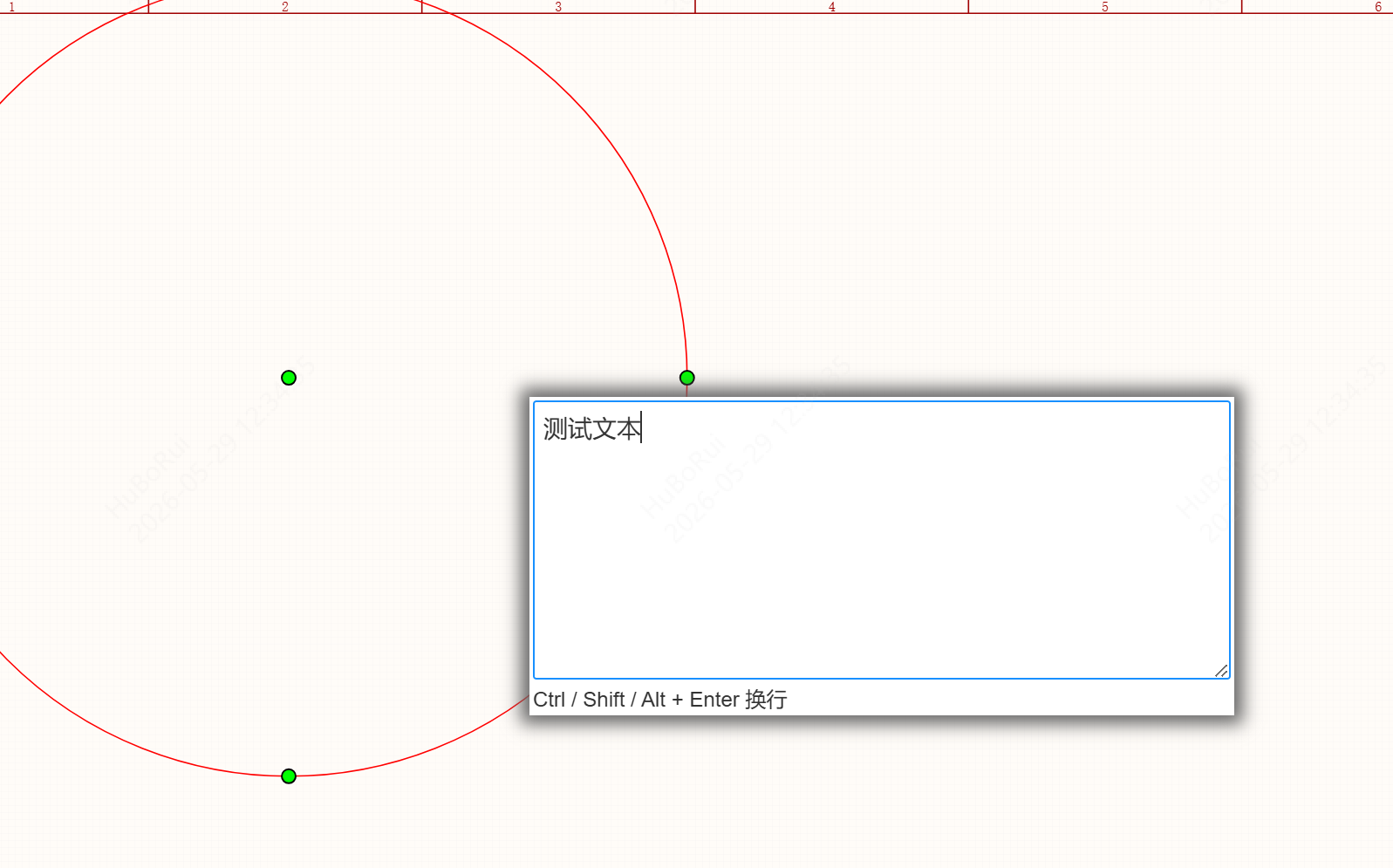
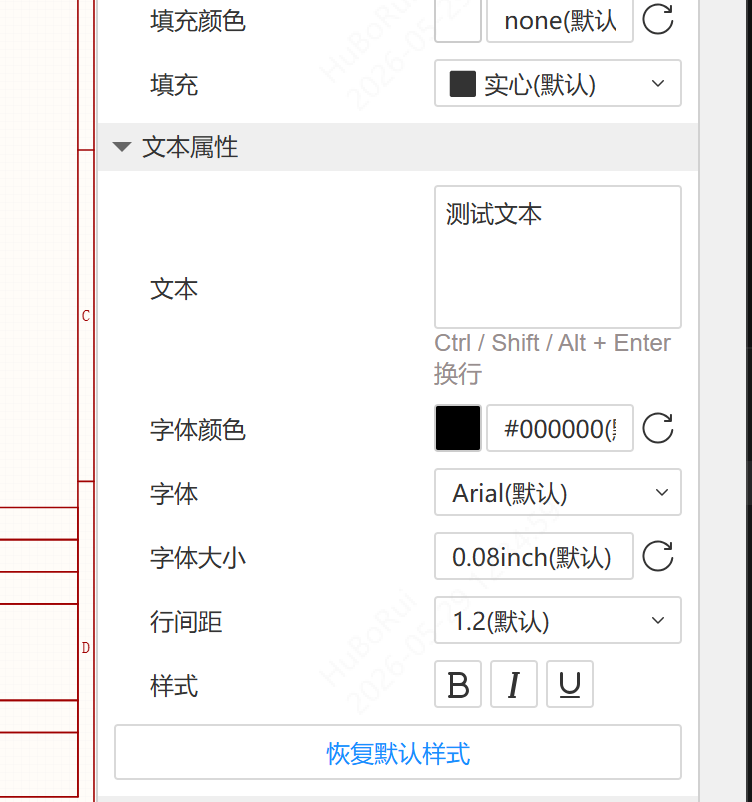
Double-click a primitive to open the text edit box, enter the content and confirm. The text is displayed centered and does not wrap automatically.
The system theme provides a "Rectangle Text" item under Rectangle, with the default #000000 and Arial 0.08inch, which you can adjust as needed.
Setting an Association
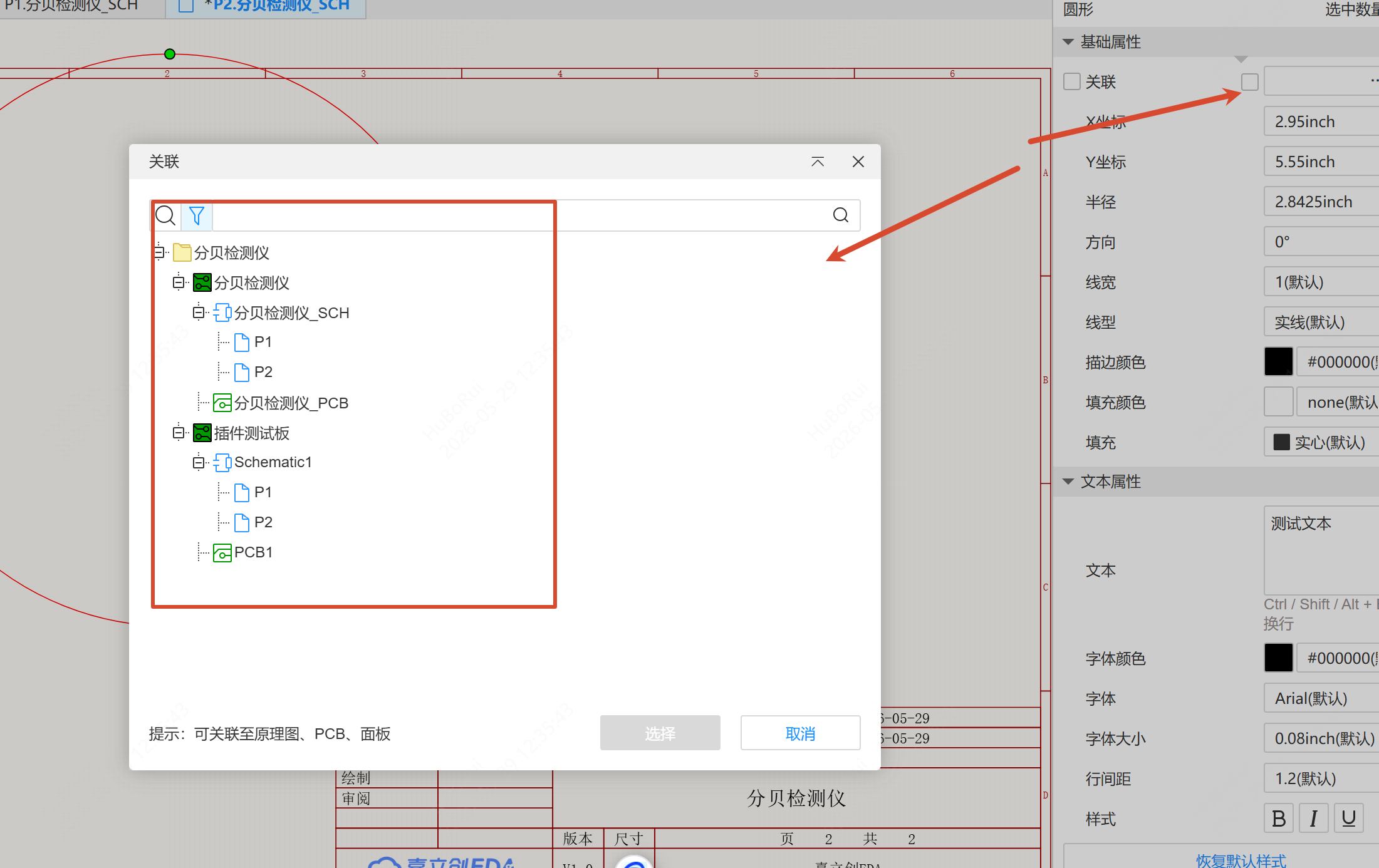
Click the association button in the property panel to open a tree selection window on the left, where you can associate the primitive with a schematic, a schematic page, a panel or a PCB. After you confirm, the association box shows the document name with its path.
- Hovering over the association box shows "×"; click it to clear the association
- Click the jump icon on the right to jump to the associated page
Adjusting Geometry and Style
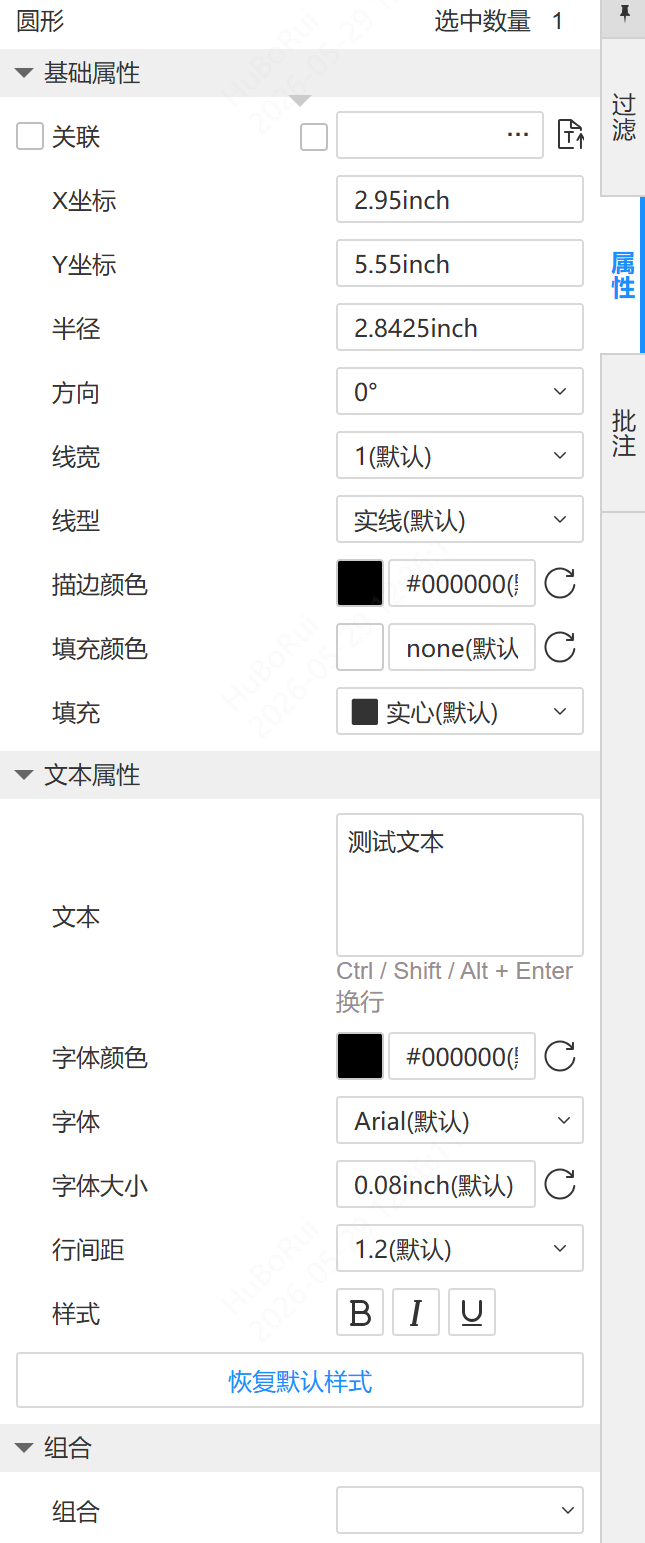
In the property panel you can set:
Rectangle: Corner Radius, Width, Height, X Location, Y Location, Rotate (0° or 90°, default 0°), Line Width, Line Style.
Circle and Ellipse: Width, Height, X Location, Y Location, Line Width, Line Style.
All three primitives support Stroke Color, Fill Color and Fill.
After a primitive is selected, control points appear at its four corners; drag them to scale it.
Jumping to the Associated Page
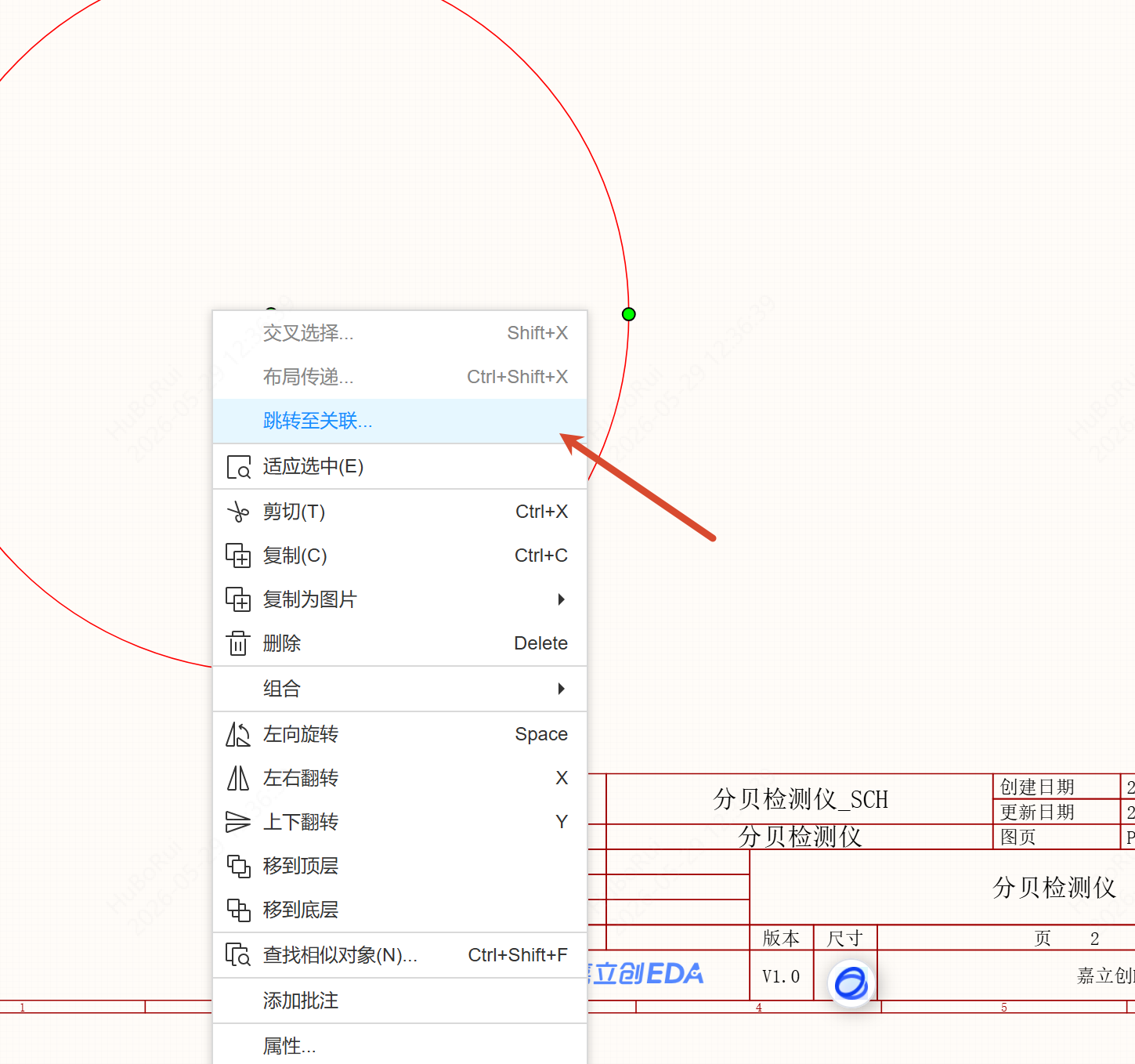
Ctrl+ double-click the primitive to jump directly to the bound associated page- Right-click the selected primitive and click "Jump to associated..." below "Placement Transfer"
When an associated page is deleted, the bound primitive is automatically unassociated and cleared.
Export
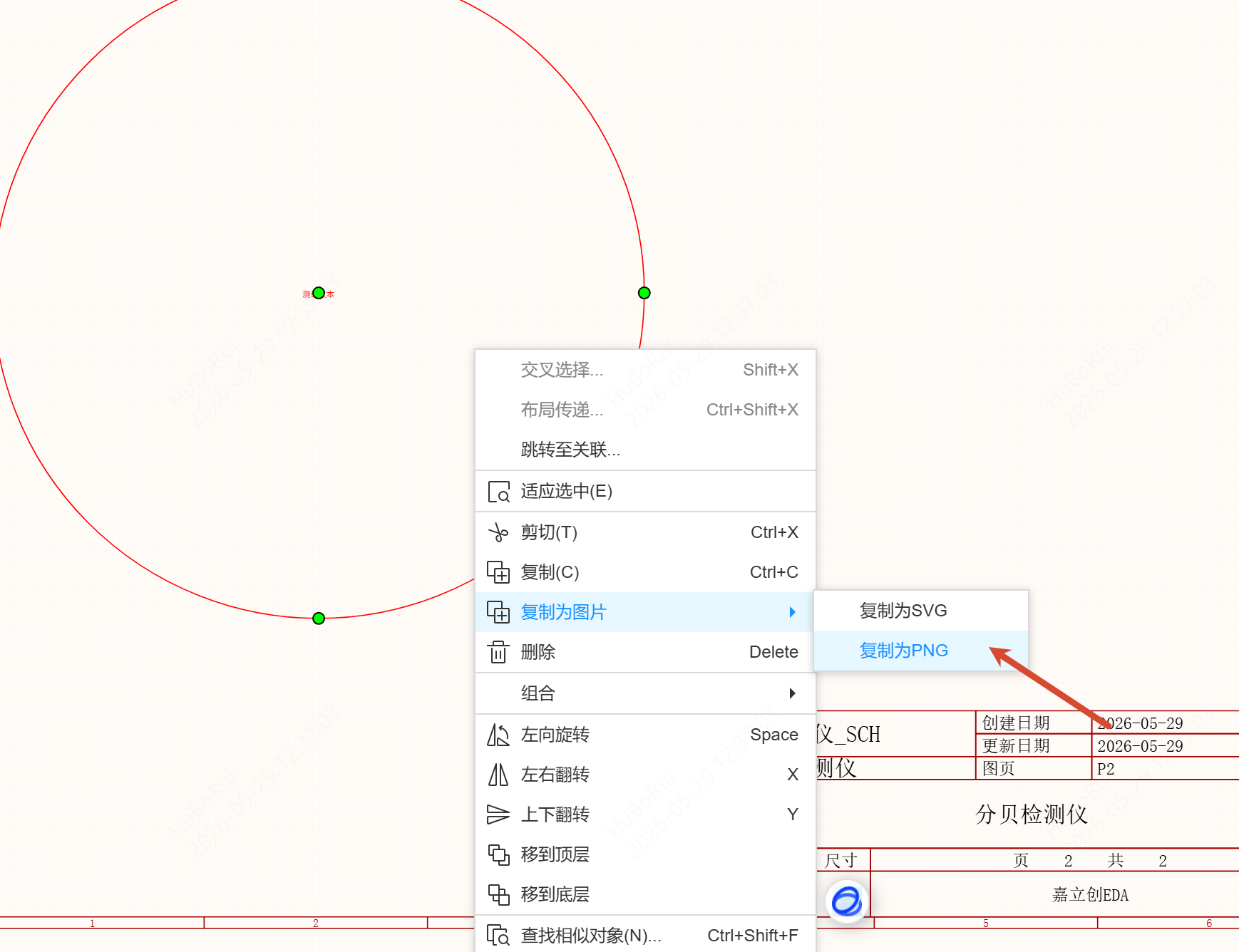
- Right-click a selected diagram frame and choose "Copy as Image" to export the highlighted selection as an image
- Diagram frames are carried along when exporting projects and documents
- When converting formats and exporting to AD and PADS, the centered text is handled as free text