

Paste External Image
Paste an image from the system clipboard (a screenshot, a copied image file, and so on) onto the canvas with a shortcut, without importing it from a file.
Feature Entry
- Shortcut:
Ctrl+V(Cmd+Von macOS) - Top Menu - Edit - Paste
- Drag an image from the file explorer directly into the editor
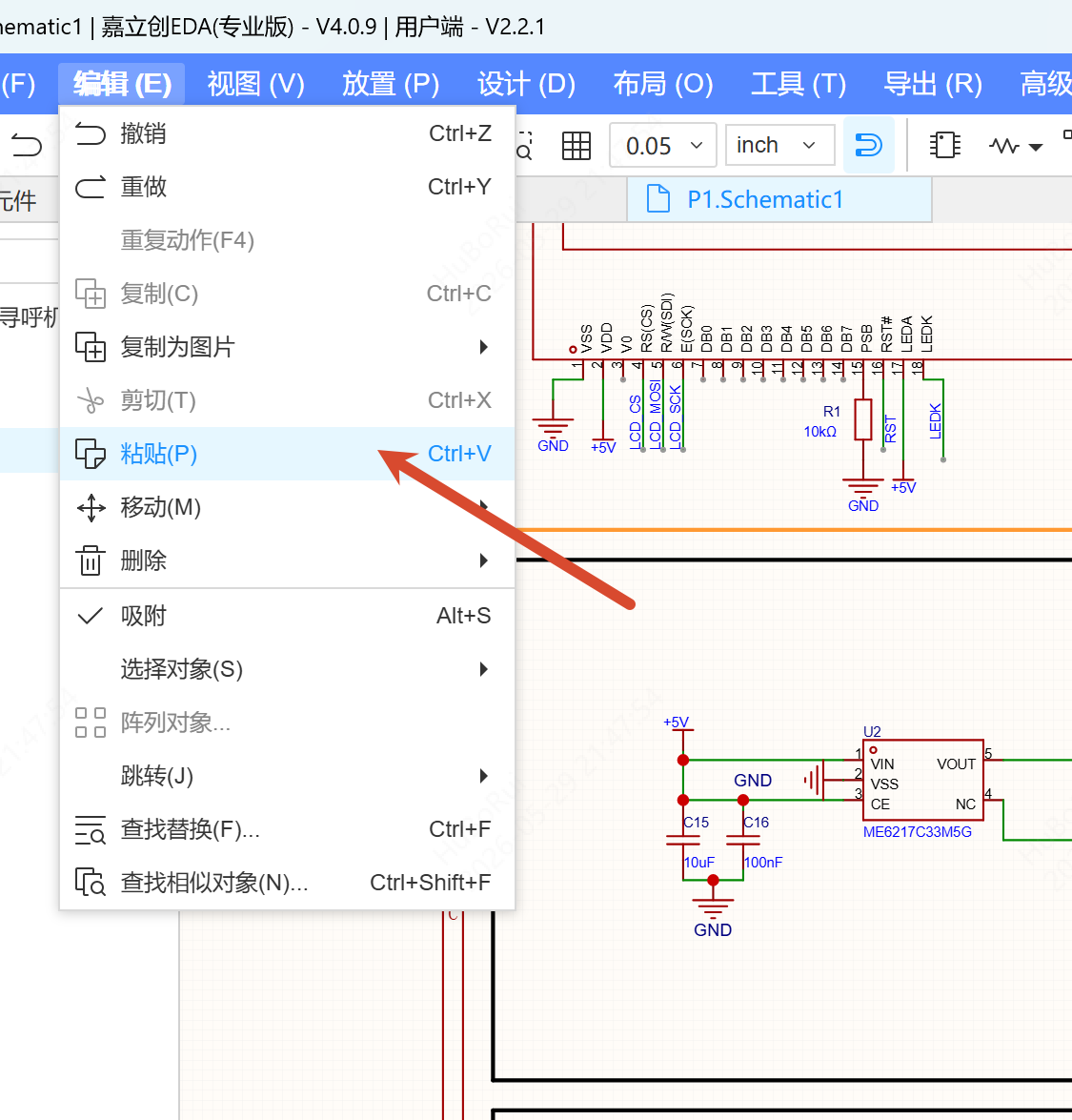
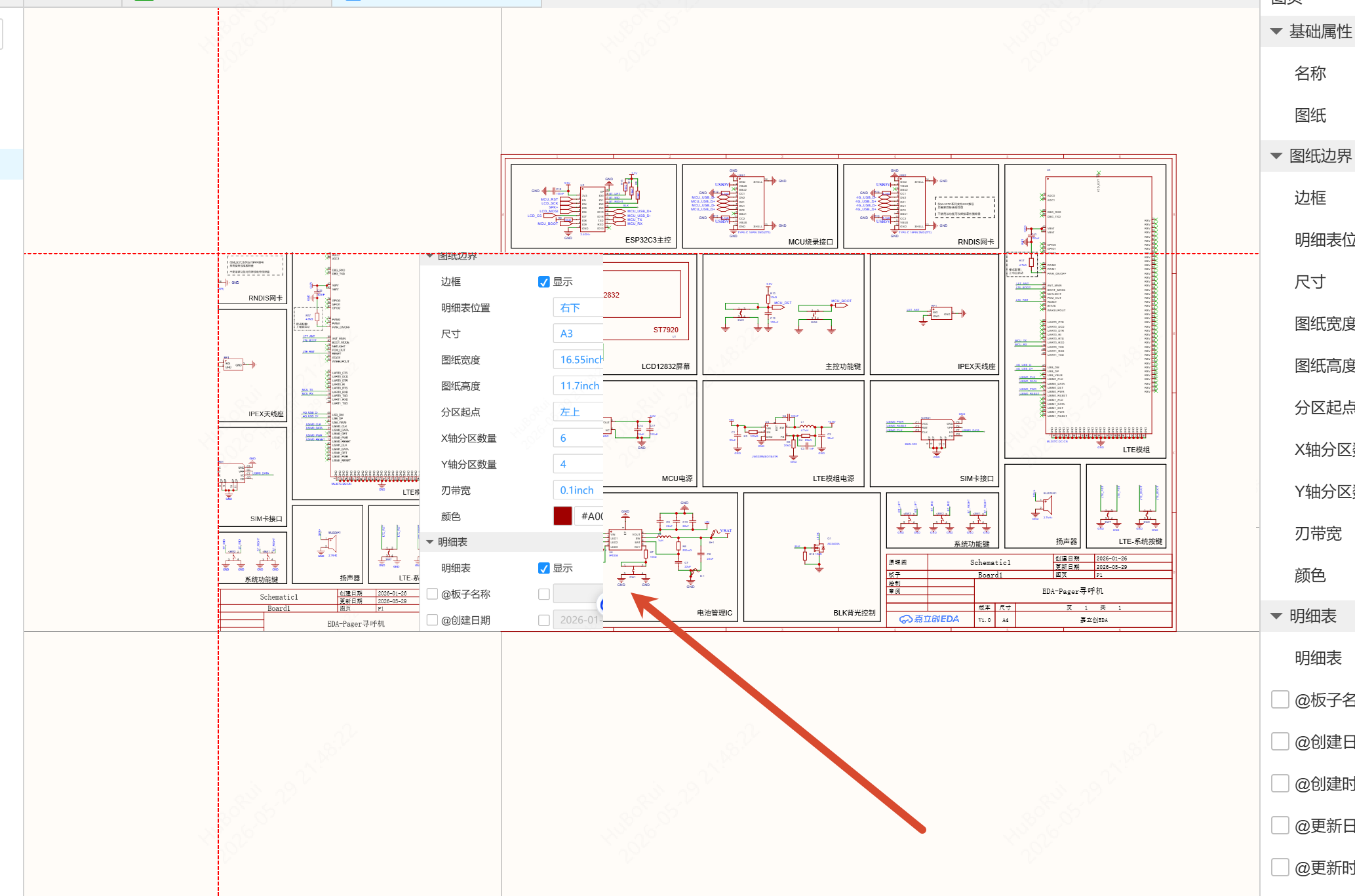
Schematic / Symbol / Panel
- Copy an external image (a screenshot or a file)
- Press
Ctrl+Vin the editor; the cursor changes to the placement state and the image preview follows the cursor - Click on the canvas to place it on the current layer; press
Escor right-click to cancel
In the panel, the SVG format goes through the import flow, while other formats are pasted directly with the default parameters.
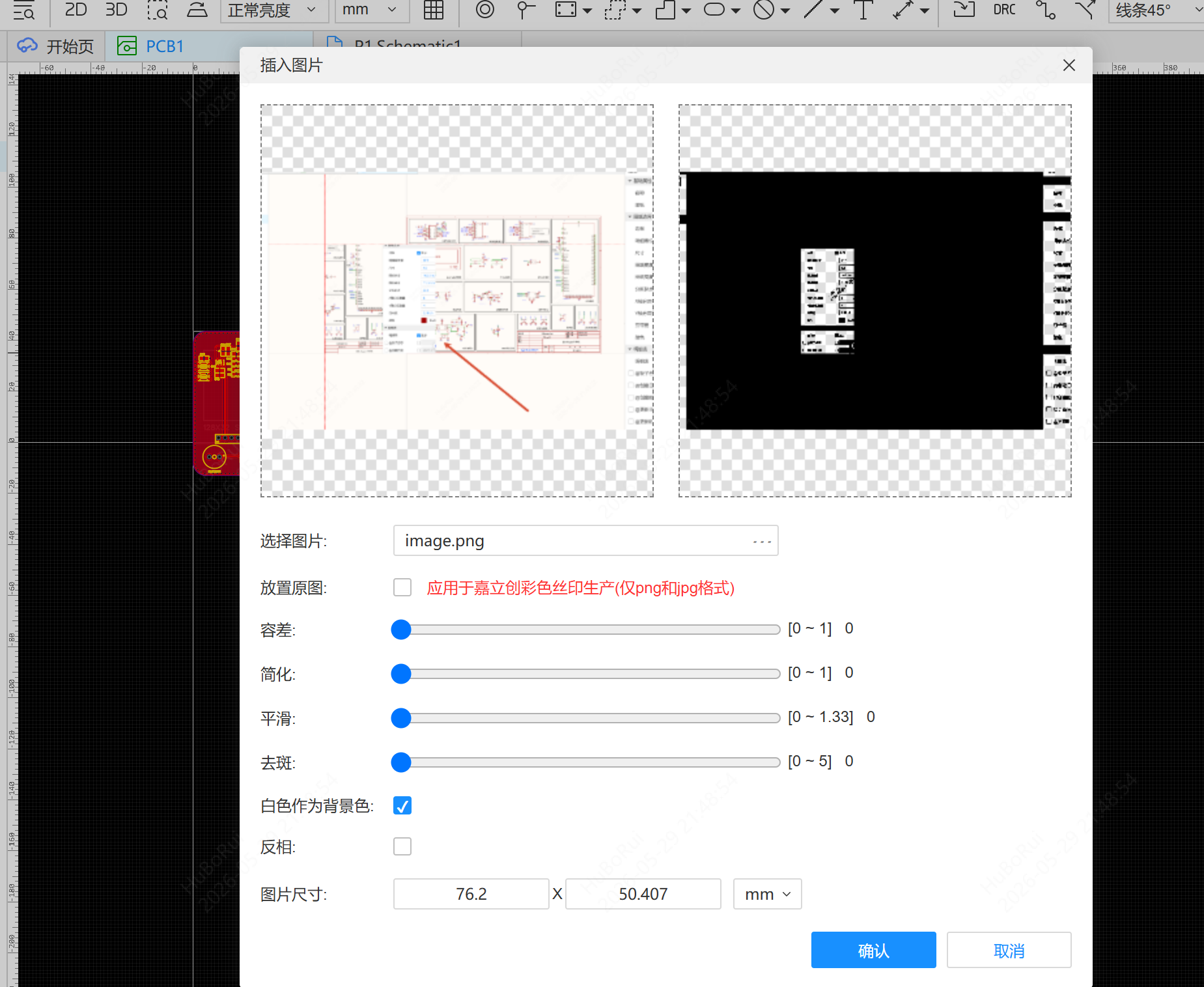
PCB / Footprint
- Copy an external image
- Press
Ctrl+Vin the editor; the import window opens and the image is previewed normally - Complete the placement following the existing import flow
Drag and Drop Import
Drag an image from the file explorer directly into the editor; the schematic places it directly, while the PCB enters the import flow.
Notes
- Images smaller than 50MB are automatically compressed to within 2MB
- For images larger than 50MB, the message "The image size cannot be more than 50 MB" is shown
- When a corrupted image is pasted, the message "The image is abnormal, please check and try again" is shown at the top