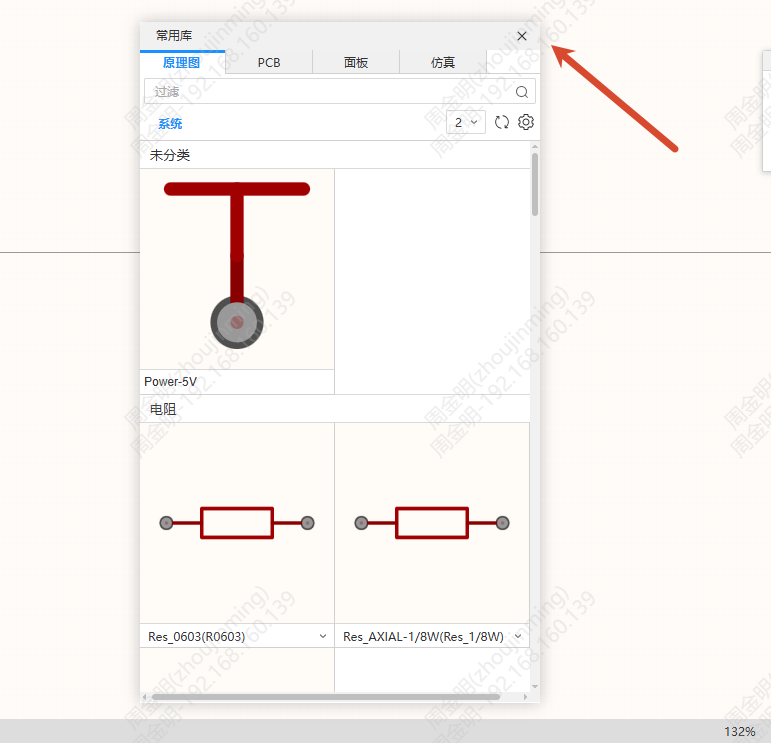
Free Panel Dragging and Edge Docking
All tab panels support being dragged out into a floating window, moved freely and resized, docked to the editor edges, and merged with other windows; the workspace layout can also be customized.
Feature Entry
Applies to all tab panels in the current version, including the left panel, the right panel, and the bottom panel.
All panel toggles are synchronized to the top menu, so panels can be opened or closed from the menu.
Steps
Drag Out into a Floating Window
Hold the mouse on the tab and move it toward the center of the canvas; once it leaves the sidebar area, the tab becomes an independent floating window.
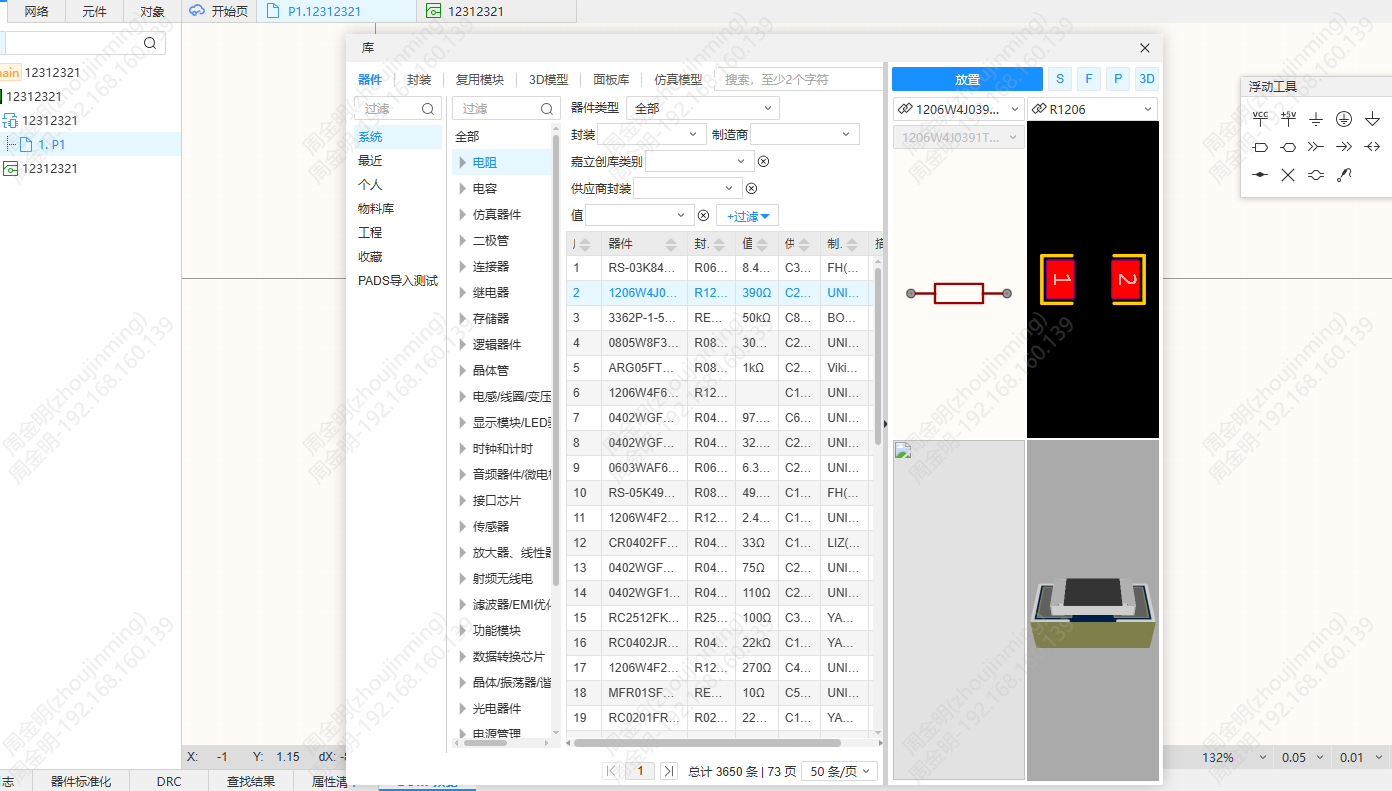
Floating Window Operations
- Move: drag the title bar (excluding the button area) to move the window, within the editor only
- Resize: drag any of the four sides or four corners of the window; the minimum size is 230×300, and the content is rendered in real time
- Stacking: the window clicked last is displayed on top
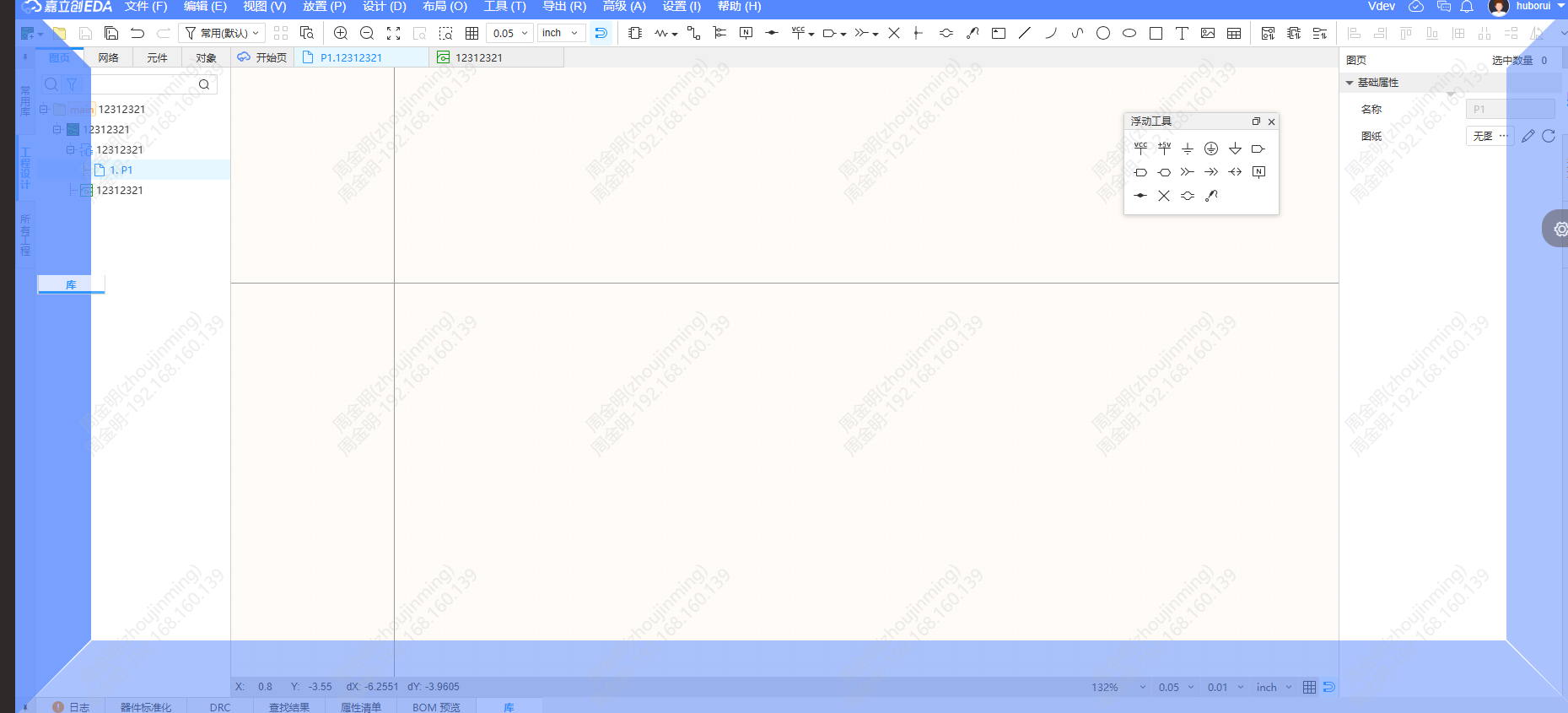
Dock to an Edge
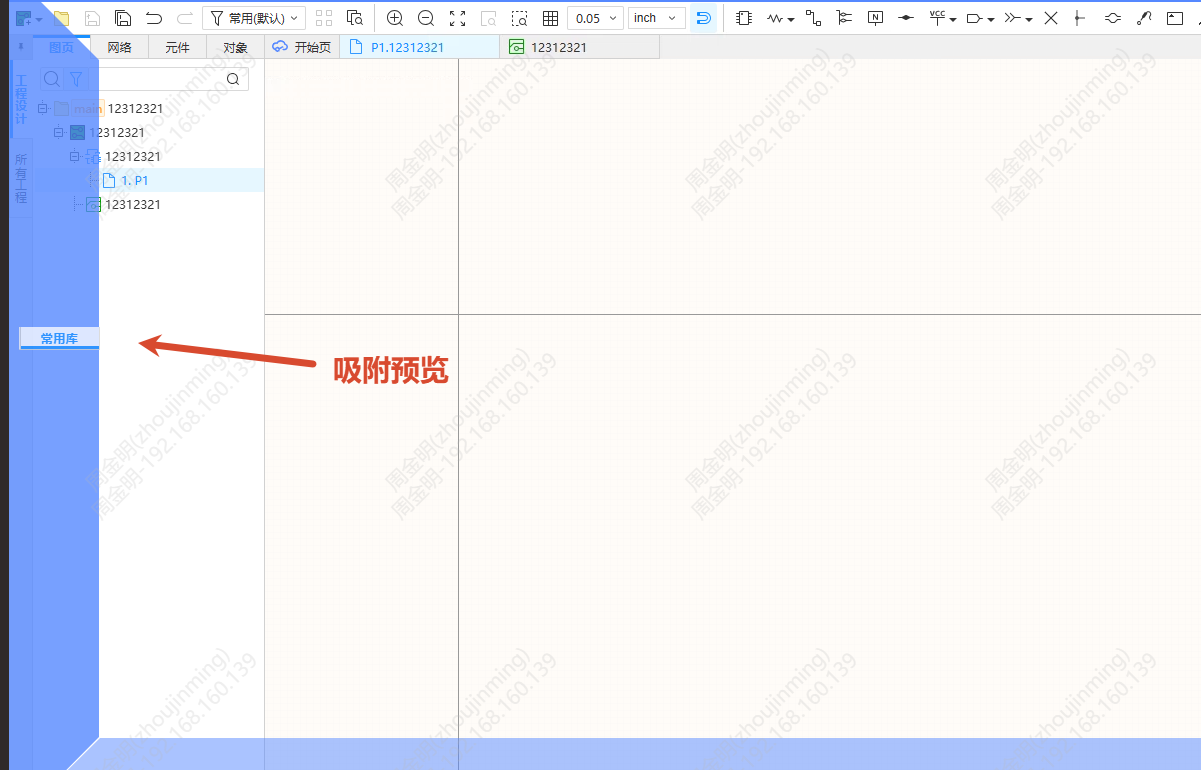
Drag a floating window close to one of the four edges of the canvas (within 90px inward from the edge) to show a preview of the dock position; when you release the mouse, the window docks to the corresponding side bar. Docking to the left, right, and bottom is supported.
Merge Windows
Drag one floating window onto another floating window to show a merge preview; when you release the mouse, the two windows merge into one and are switched between with tabs. The merged window supports dragging a tab out to separate it again.
Tab Ordering
In the docked or merged state, drag a tab to swap their order. When docked, hold the tab to adjust the order within the side bar.
Closing a Window
Click the close button in the top-right corner of the window, or uncheck the corresponding panel in the top menu.